
Data Studio allows you to generate Insights to analyse your company portfolios and access valuable company information. You can choose from different Insight types, configure their settings and download the results once they are ready. You can also schedule Insights to run automatically. This guide explains how to create, run, schedule and access Insights within your portfolio.
1. How do I create and run an Insight?
1. Navigate to Data Studio > Portfolio Manager.
2. Select the portfolio you want to analyse.
3. Click the Insights tab.
4. Click Create new insight.
5. Under Select insight*, choose the Insight you want to run.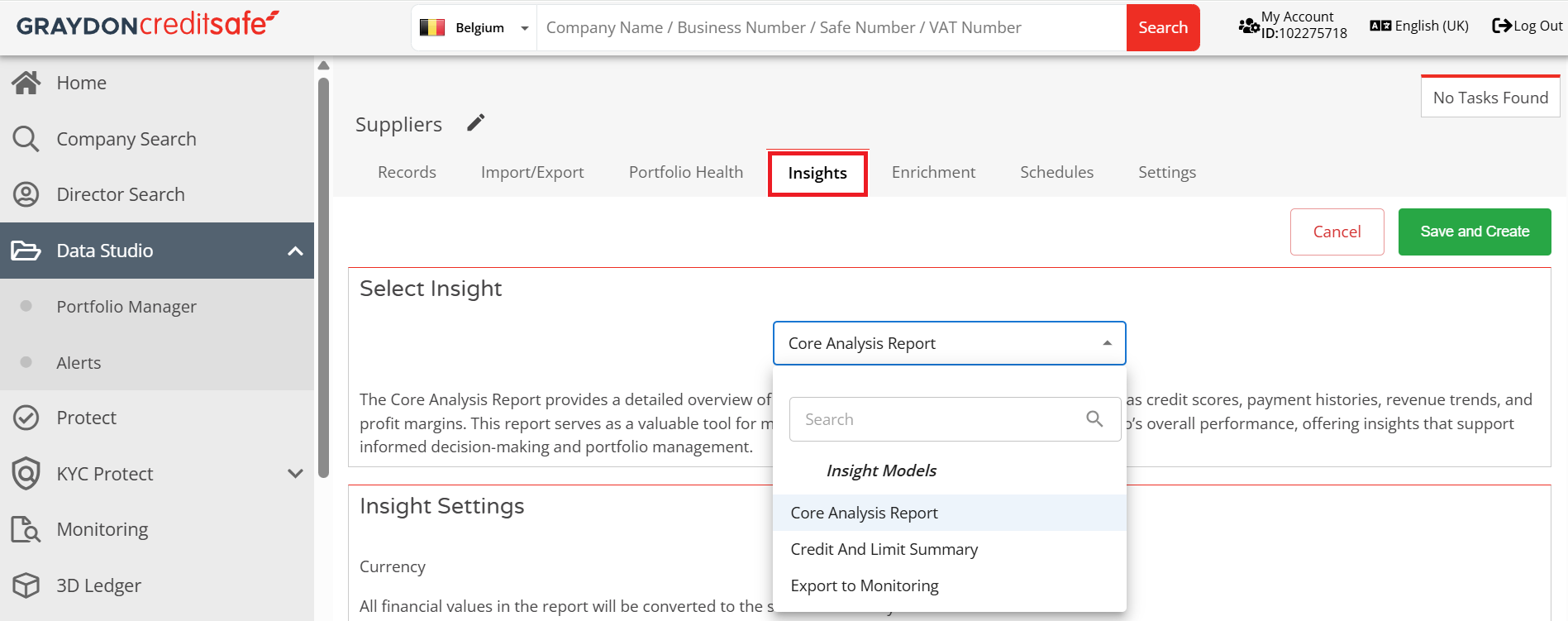
6. Configure the Insight settings. These may vary depending on the selected Insight.
- When creating a Core Analysis Report, you can select the currency in which financial values will be displayed.
- When creating a Credit and Limit Summary, you can select a from date you want your report to start from.
7. If you want your Insight to run automatically, enable automated scheduling and configure your preferred schedule (see below).
8. Click Save and Create.
9. If prompted, select your Data processing reason and click Confirm.
*Learn more: What Insights are available in Data Studio?
2. How do I schedule an Insight?
When creating an Insight, you can enable automated scheduling under Insight settings.
Enable the automated scheduling toggle.
Configure the following settings:
Schedule start date: Select when the schedule should begin.
Schedule end date: Select when the schedule should end (maximum one year).
Frequency: Choose daily, weekly or monthly.
Time of day: Select the hour at which the Insight should run.
Email recipients (optional): Enter the recipient's first name, last name and email address, then click Add.
Click Save and Create to save your Insight and schedule.
Once the scheduled job has completed, the configured recipients will receive an email notification informing them that the Insight is ready to view. You can find your scheduled Insights in the Schedules tab, where you can manage email recipients or delete an existing schedule.
3. How do I view or download an Insight?
Once you have created an Insight, it may take some time for the report to be generated.
To access your results:
Navigate to the Insights tab within your portfolio.
Find the Insight you created.
If the status shows In Progress, click Refresh to check whether the report is ready.
Once the Insight is available, select View Insight or Download Insight, where these options are available.