
Data Studio allows you to enrich your portfolio records with additional GraydonCreditsafe company information. The Global Enrichment feature provides standardised company data in a single extract, including firmographic information, recent credit scores and limits, Days Beyond Terms (DBT), employee information and company group information. This guide explains how to create, configure, schedule and download a Global Enrichment extract.
1. How do I create a Global Enrichment?
1. Navigate to Data Studio > Portfolio Manager.
2. Select the portfolio you want to enrich.
3. Click the Enrichment tab.
4. Click Create New Enrichment.
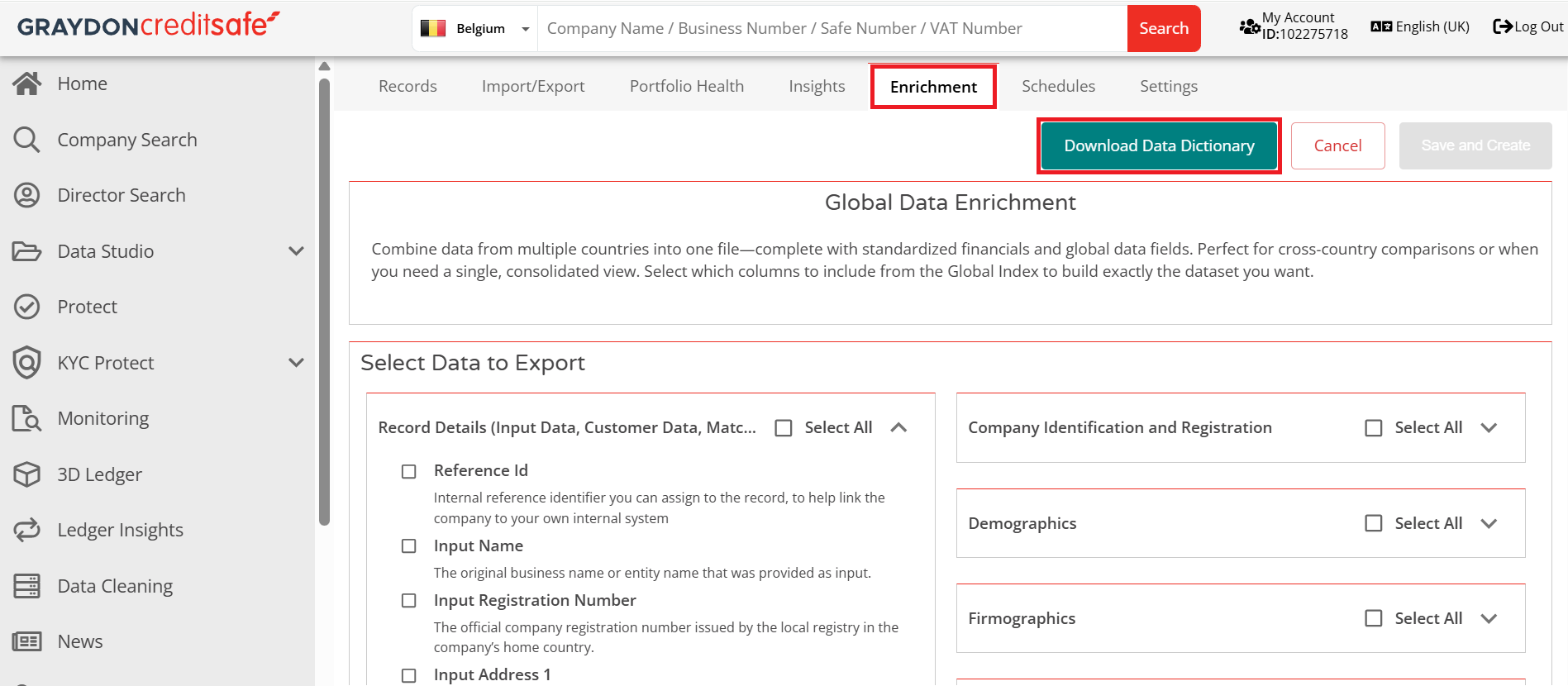
5. Select the data you want to include in your Enrichment. You can expand the different Enrichment categories using the dropdown arrows and select individual data fields. You can also click Select All to include an entire category.
Tip: You can download the Data Dictionary for more information about the available Enrichment categories and data fields.
2. How do I configure my Enrichment?
Once you have selected the data you want to include, you can configure the delivery options.
- File format: Choose your preferred output format:
XLSX (Excel)
CSV
- Records to include: Choose whether you want to include:
All records within your portfolio
Records that have been updated after a specified date
3. How do I schedule an Enrichment?
When creating an Enrichment, you can choose to generate extracts automatically at your preferred frequency.
Enable automated scheduling when configuring your Enrichment.
Configure the following settings:
Schedule start date: Select when the schedule should begin.
Schedule end date: Select when the schedule should end (maximum one year).
Frequency: Choose Daily, Weekly or Monthly.
Time of day: Select the hour at which the Enrichment should run.
Email recipients (optional): Add recipients who should receive notifications.
Click Save and Create to complete the setup.
Your scheduled Enrichment will appear in the Schedules tab, where you can view its details, edit email recipients or delete the schedule.
2. How do I download my Enrichment?
Once you have configured your Enrichment:
Click Save and Create.
If you have enabled scheduling, a confirmation message will appear once the schedule has been created.
If you have not enabled scheduling, your Enrichment will appear in the Enrichment History box.
Click Refresh to check whether your Enrichment is ready.
Once available, click Download.
The Enrichment will be downloaded as a ZIP file, containing the generated data extract. Previously scheduled Enrichment jobs will also appear in the Enrichment History tab.