
A Watch List in Data Studio allows you to flag companies within a portfolio, helping you identify businesses that require additional attention. When a Watch List is enabled, a warning will appear on the GraydonCreditsafe Company Reports of matched companies included in that portfolio. This guide explains how to enable a Watch List, configure its settings and understand who can see the warnings.
1. How do I enable a Watch List?
To enable a Watch List for your portfolio:
1. Navigate to Data Studio > Portfolio Manager.
2. Select the portfolio for which you want to enable a Watch List.
3. Click the Settings tab.
4. Select Watch List.
5. Enable the toggle Enable Watch List on this portfolio.
6. Optionally, enable Extended Director Check.
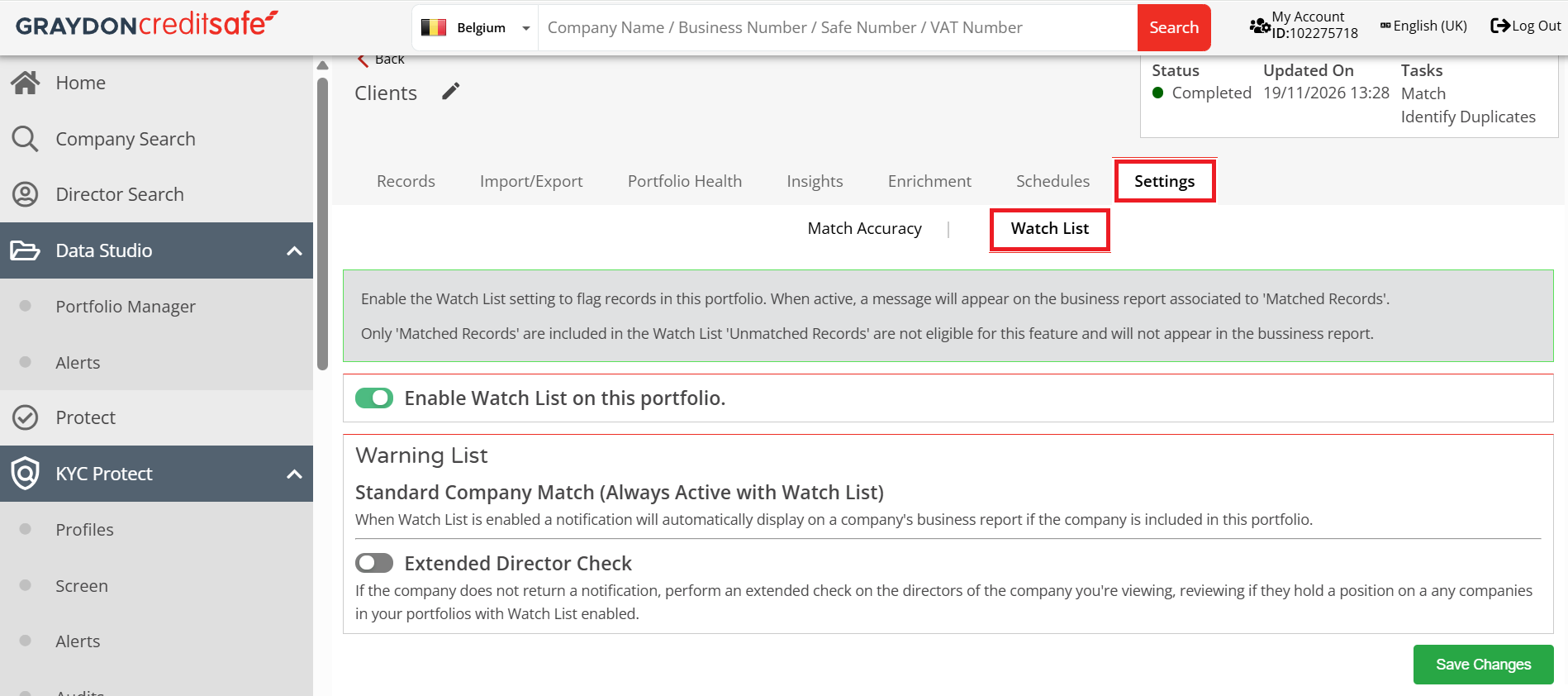
Once enabled, a warning will appear on the Company Reports of matched companies included in your portfolio.
2. Who can see Watch List warnings?
Watch List warnings are visible to all users viewing the relevant Company Report, regardless of whether the portfolio has been shared.
Please note:
Watch Lists apply to the entire portfolio.
Only Matched Records are eligible for Watch List warnings. Unmatched Records will not be flagged in Company Reports.
Watch Lists do not generate Alerts or email notifications.