
Data Studio allows you to create, edit, share, clone and delete portfolios, making it easy to organise and manage your company data. This guide explains how to manage your portfolios and their settings within Data Studio.
1. How do I create a portfolio?
1. Log in to the GraydonCreditsafe platform.
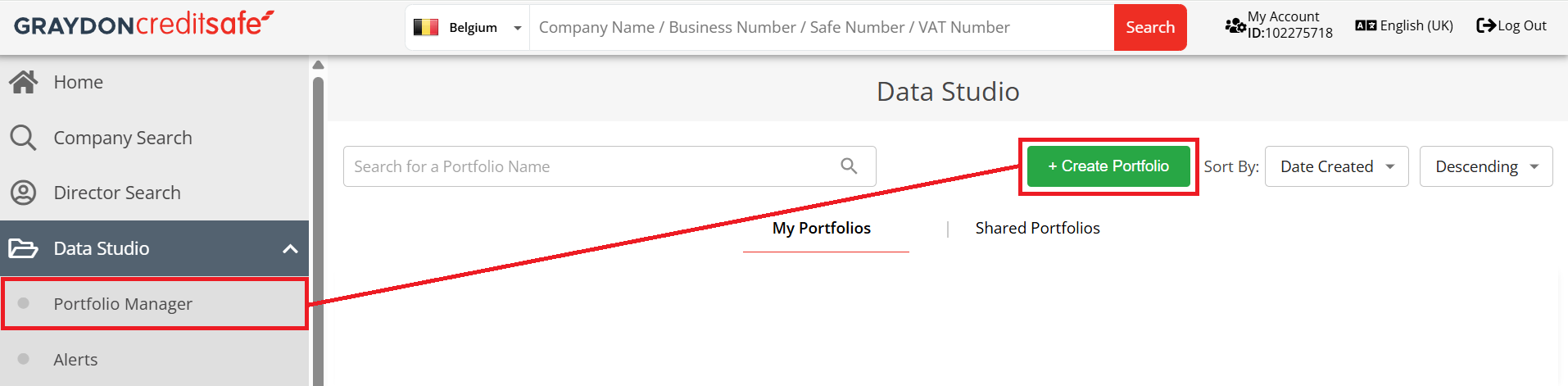
2. In the left-hand navigation menu, click Data Studio and select Portfolio Manager.
3. On the Portfolio Manager page, click Create Portfolio in the top-right corner.
4. Enter a unique name for your portfolio.
5. Optionally, choose whether you want to share the portfolio with other users on your account.
6. If you have Data Studio Alerts enabled for your account, you can automatically create an Alert profile with all default rules enables and your account email address as recipient. If not, and you would like to, you can contact your Account Manager.
7. Complete the portfolio creation process.
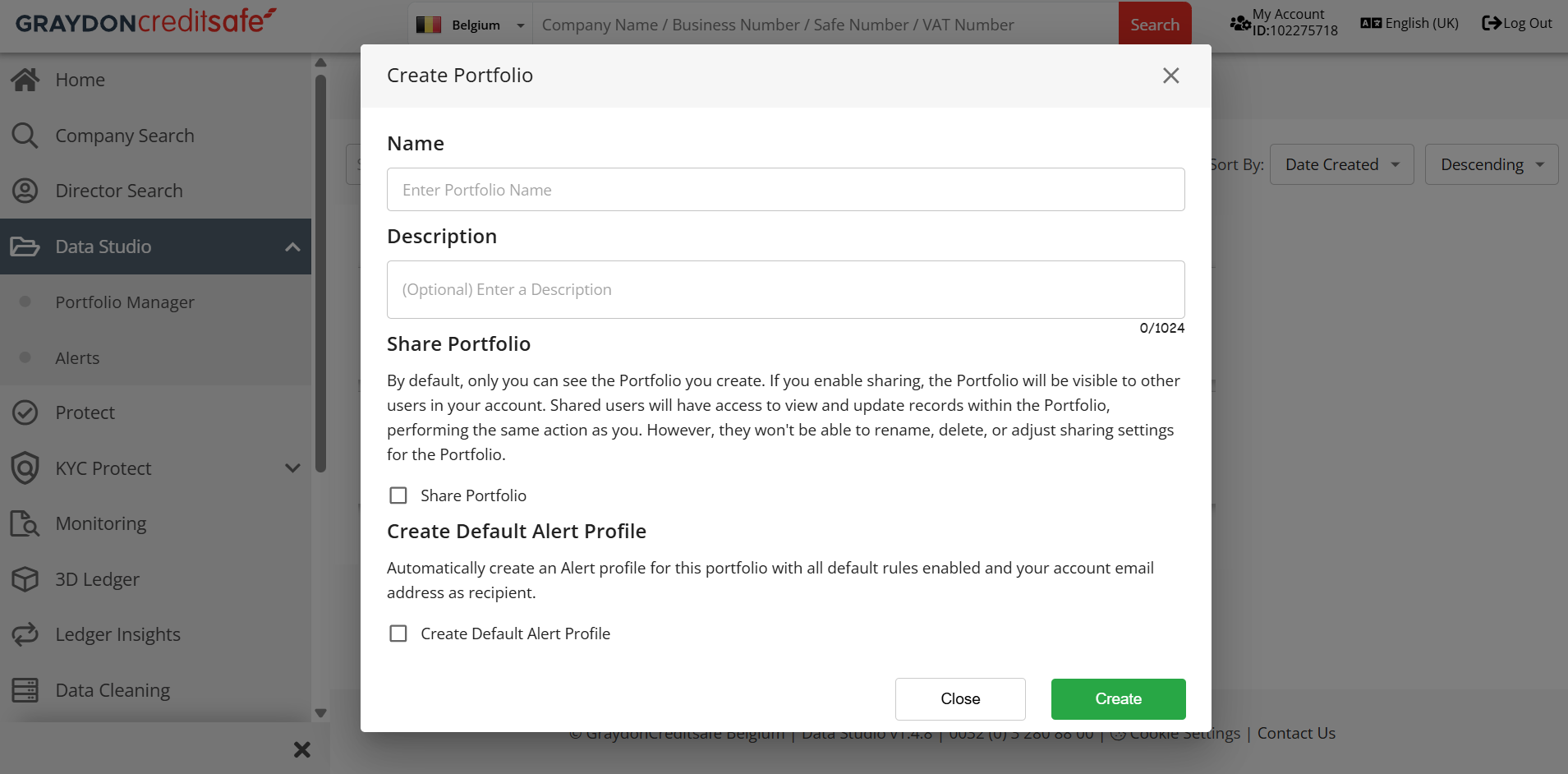
Please note: Portfolio names must be unique. The following special characters are supported: - , _ { } ( ) . : [ ] @
Once your portfolio has been created, you can start adding company records.
Learn more: How do I add and manage records in a portfolio?
2. How do I edit a portfolio?
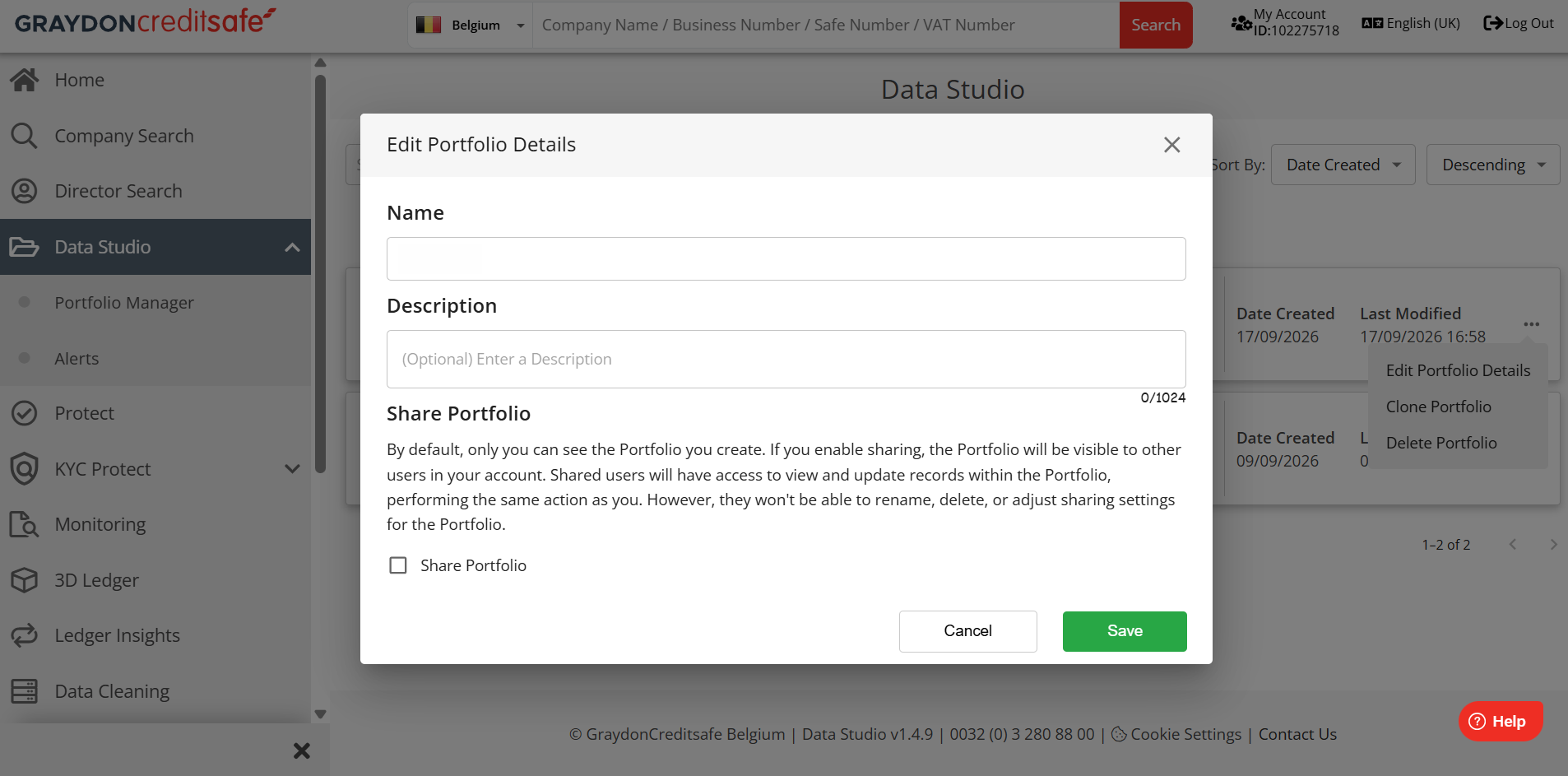
You can update an existing portfolio's name, description and sharing settings.
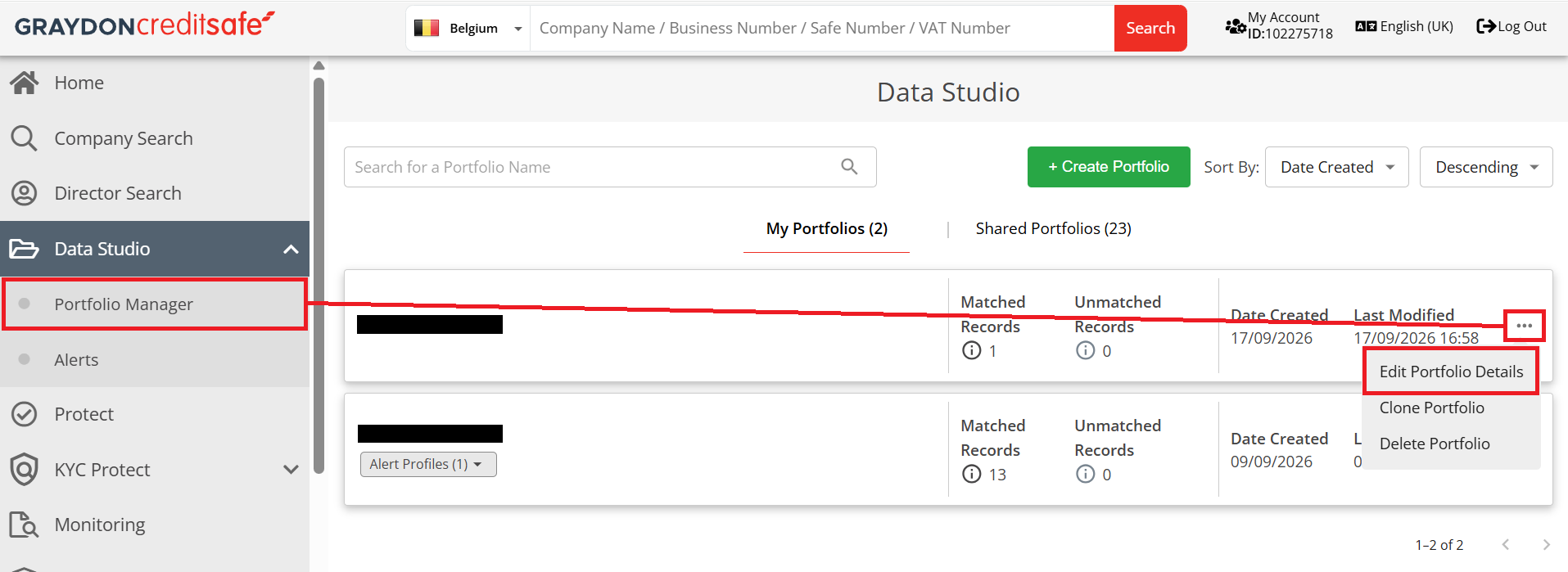
1. Navigate to Data Studio > Portfolio Manager.
2. Find the portfolio you want to edit.
3. Click the three-dot menu (⋮) on the right-hand side of the portfolio list.
4. Select Edit Portfolio Details.
5. Update the relevant information, such as the portfolio name, description or sharing settings.
6. Save your changes.
Please note: When renaming a portfolio, the new name must be unique and follow the same naming rules as when creating a portfolio.
3. How do I share a portfolio?
You can share a portfolio with other users on your GraydonCreditsafe account, allowing them to access and manage the records within it. To share a portfolio:
1. Navigate to Data Studio > Portfolio Manager.
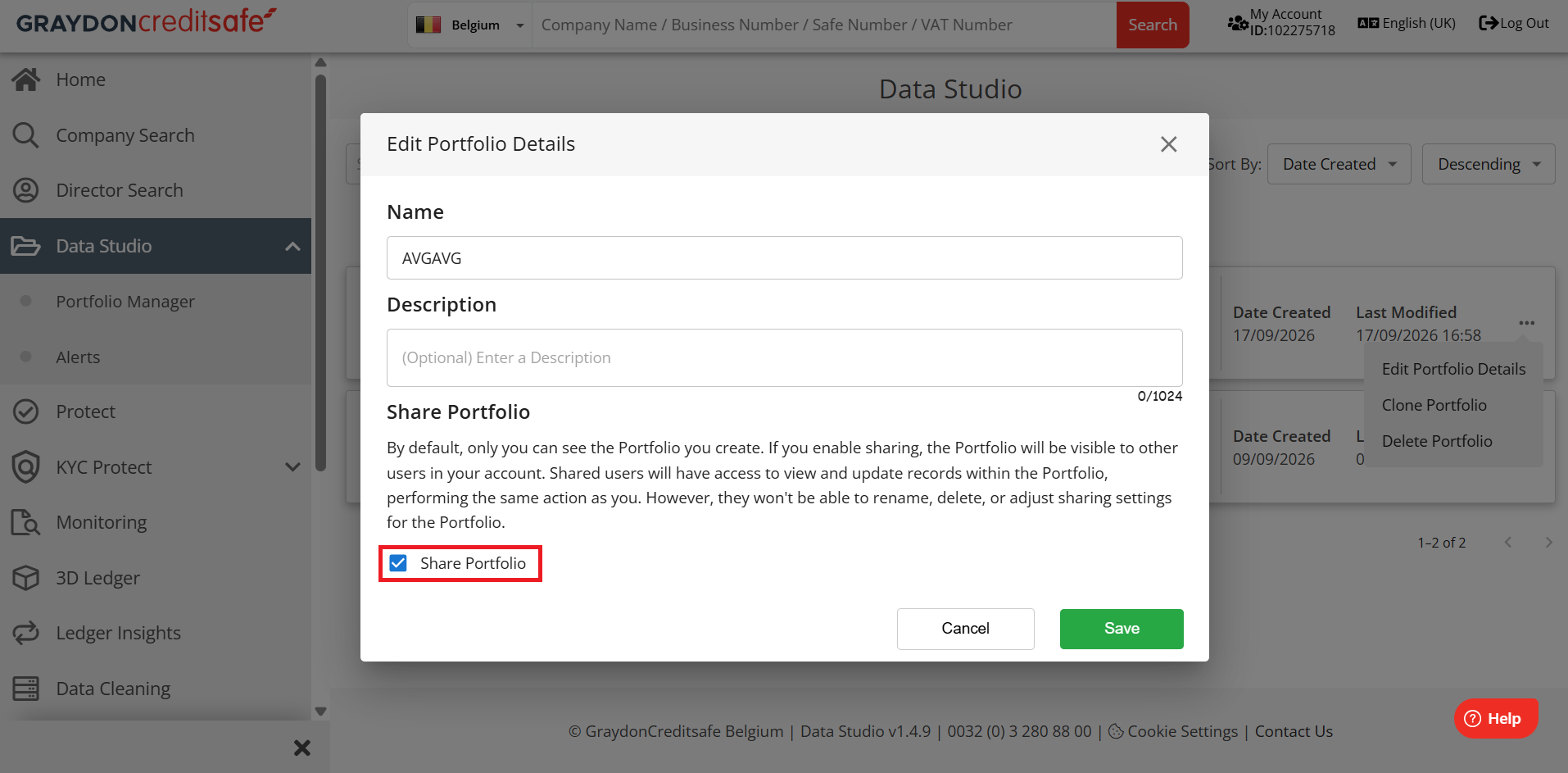
2. Create a new portfolio or open Edit Portfolio Details for an existing portfolio.
3. Tick the Share Portfolio checkbox.
4. Save your changes.
What can other users do with a shared portfolio?
Users with access to a shared portfolio can:
View the portfolio and its records
Add, update and manage records within the portfolio
However, they cannot:
Rename the portfolio
Delete the portfolio
Change its sharing settings
Please note:
Sharing applies to all other users on your GraydonCreditsafe account.
It is not possible to share a portfolio with specific individual users only.
4. How do I clone a portfolio?
Cloning allows you to create a copy of an existing portfolio. You can watch the interactive demonstration here: How do I clone a portfolio in Data Studio?
1. Navigate to Data Studio > Portfolio Manager.
2. Find the portfolio you want to clone.
3. Click the three-dot menu (⋮) on the right-hand side of the portfolio list.
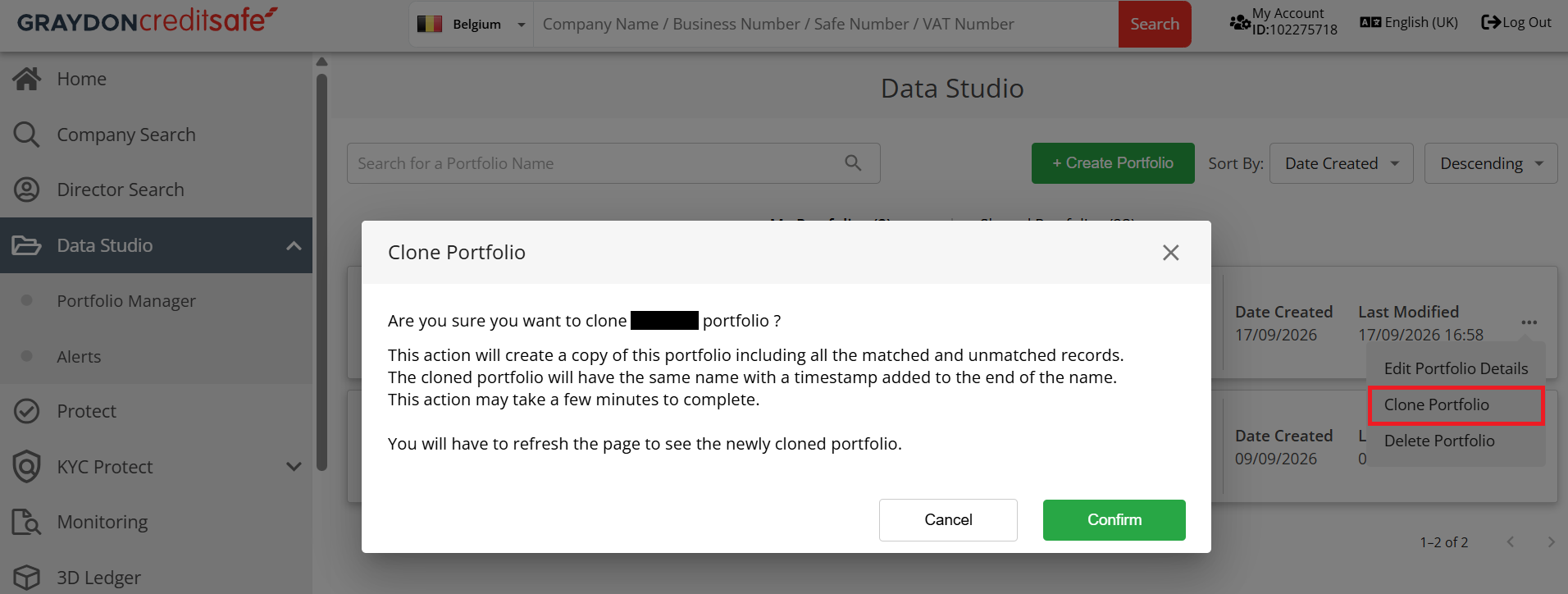
4. Select Clone Portfolio.
5. You will need to refresh your page to see the new cloned portfolio.
6. The new cloned portfolio will have a string of numbers added to it. You can change the name easily by editing the portfolio details.
Please note: If you clone a shared portfolio, the cloned portfolio will automatically be shared as well.
5. How do I delete a portfolio?
If you no longer need a portfolio, you can delete it from Data Studio.
Navigate to Data Studio > Portfolio Manager.
Find the portfolio you want to delete.
Click the three-dot menu (⋮) on the right-hand side of the portfolio list.
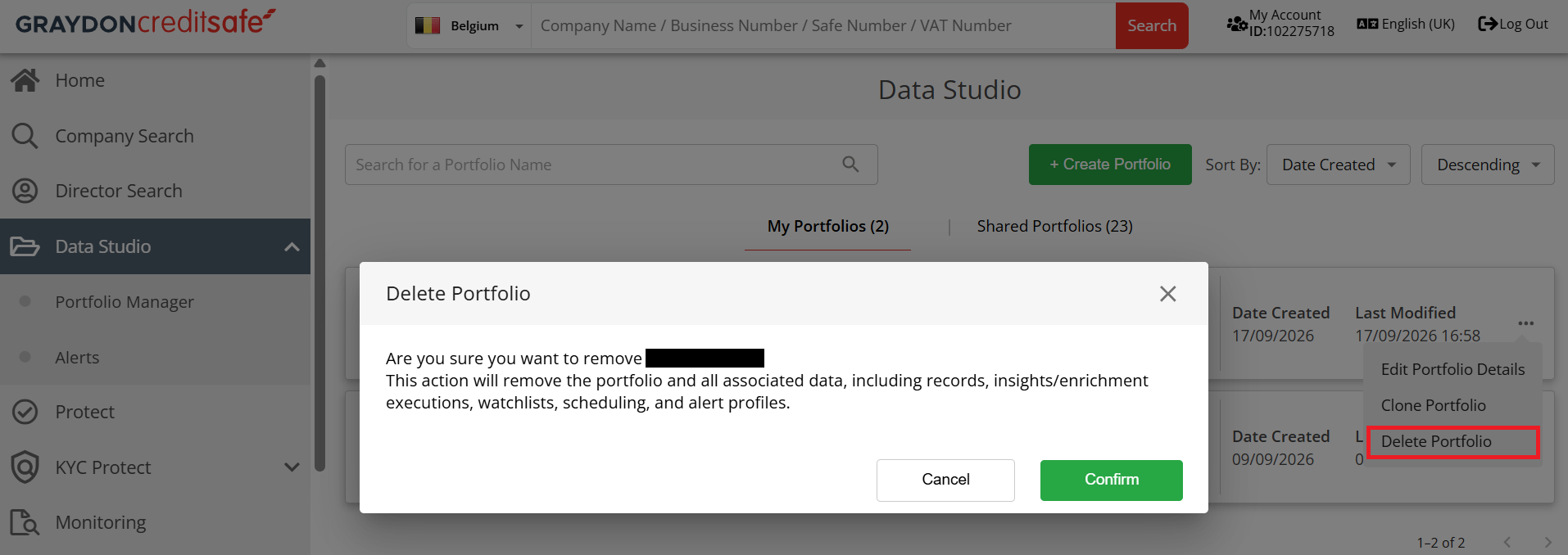
Select Delete Portfolio.
Important: Deleting a portfolio will also delete the records within it. Make sure you have selected the correct portfolio before confirming.
6. What should I do next?
Once you have created and configured your portfolio, you can start adding and managing company records.
Learn more: How do I add and manage records in a portfolio?