
Data Studio allows you to add, import and manage company records within your portfolios. You can add records individually, upload multiple records at once or add companies directly from a Creditsafe Company Report.
There are three ways to add company records to your portfolio:
Mass file upload: Import multiple company records using an Excel or CSV file.
Create new record: Manually add an individual company record.
Add from Company Report: Add an existing company directly from a Creditsafe Company Report.
Option 1: Mass upload records
You can upload multiple company records at once using a CSV or Excel file.
1. In the left-hand navigation menu, click Data Studio > Portfolio Manager.
2. Select the portfolio you want to upload records to.
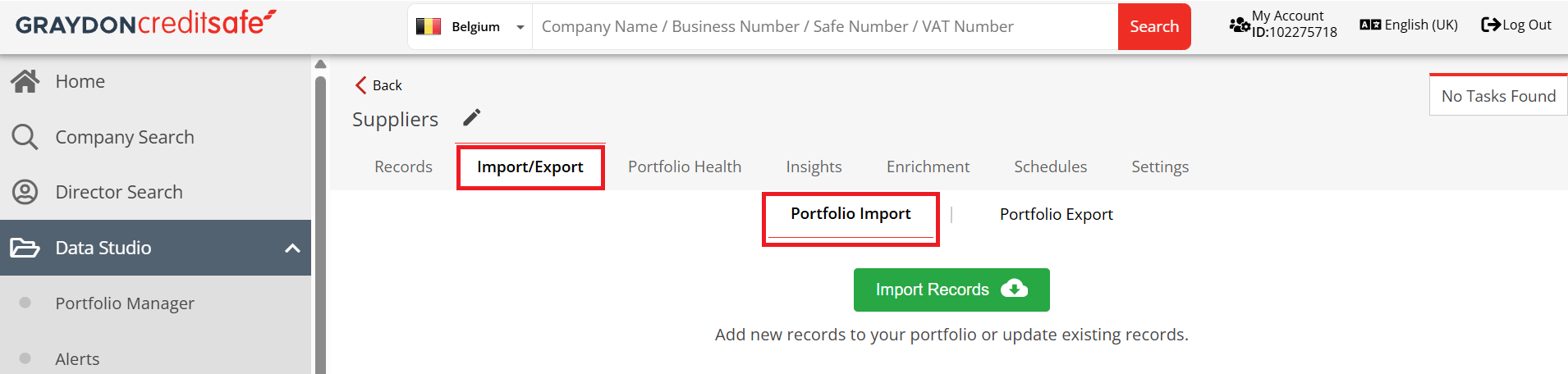
3. Click the Import/Export tab.
4. Click Import Reconds in Portfolio Import (default).
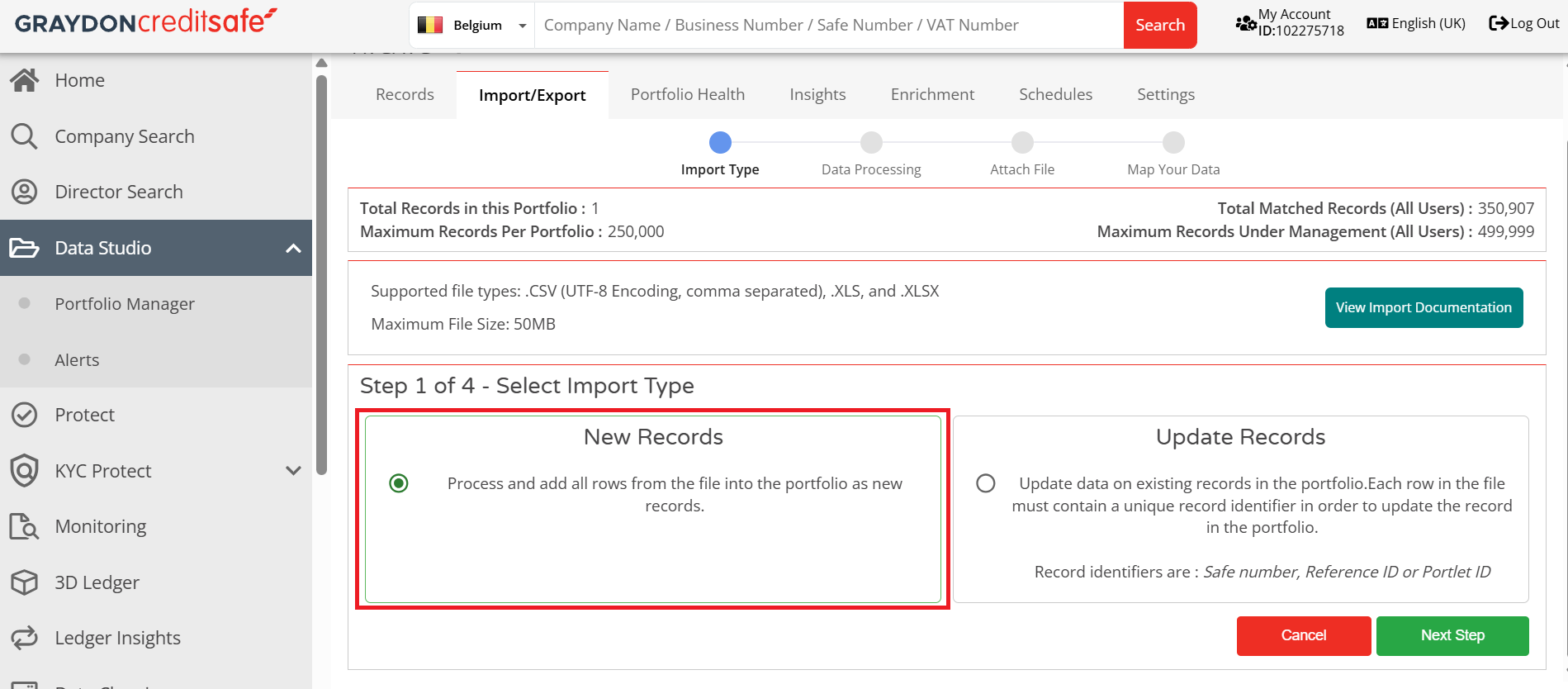
5. Select New Records and click Next Step. When importing records, you can select New Records or update existing records. If your portfolio is empty, the option to update records will not be available.
6. Choose whether you want to apply Matching and Duplicate Management to your uploaded records. Click Next Step.
7. Upload your file. If your file contains column headers, tick the relevant checkbox. Click Next Step.
8. Map your file's columns to the corresponding GraydonCreditsafe data fields.
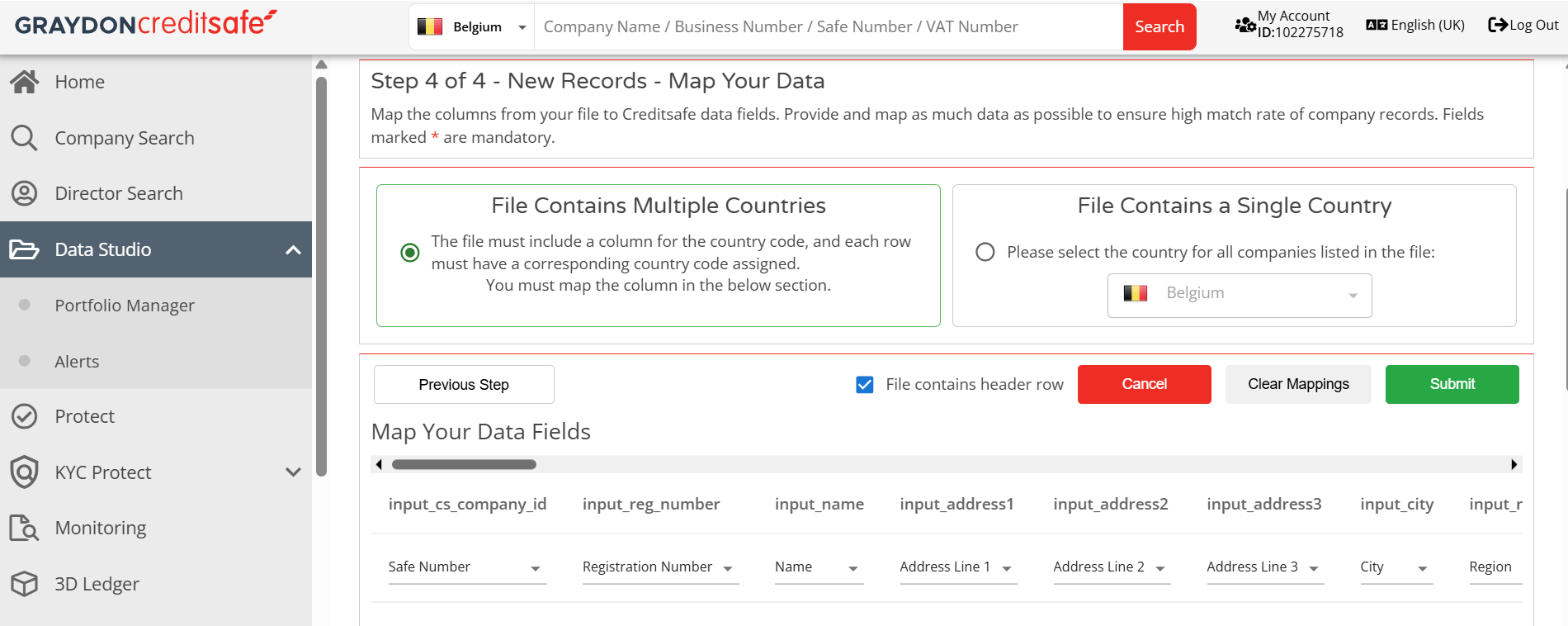
9. Click Submit to start the import.
10. Once submitted, your file will begin processing. Navigate to the Records tab to view the upload progress. When processing is complete, the imported records will appear in your portfolio.
File requirements:
Supported formats:
.csv,.xlsand.xlsxMaximum file size: 50 MB
For additional guidance, see the interactive demo How to mass upload companies to a portfolio in Data Studio.
Please note: If your portfolio already contains records, you can also use the Import/Export tab to update existing records instead of adding new ones. Read more in How do I manage records in a Data Studio portfolio?
Option 2: Manually create a new record
You can also add individual company records directly within your portfolio.
1. Navigate to Data Studio > Portfolio Manager.
2. Select the portfolio where you want to add the record.
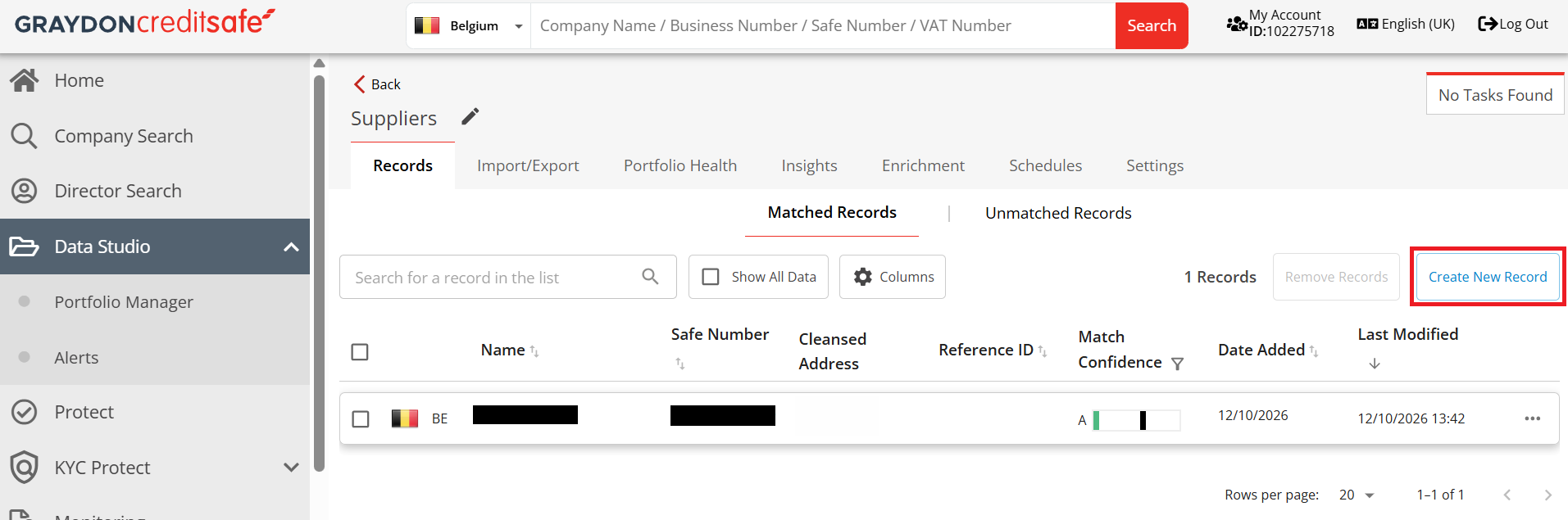
3. Click Create new record in the top-right corner.
4. Enter the company details. The Country Code is a required field.
5. You can provide additional information to math your record on, including:
Safe Number
VAT/Registration Number
Address
City
Region
Post Code
Customer data
6. Use the + symbols to add additional attributes if needed.
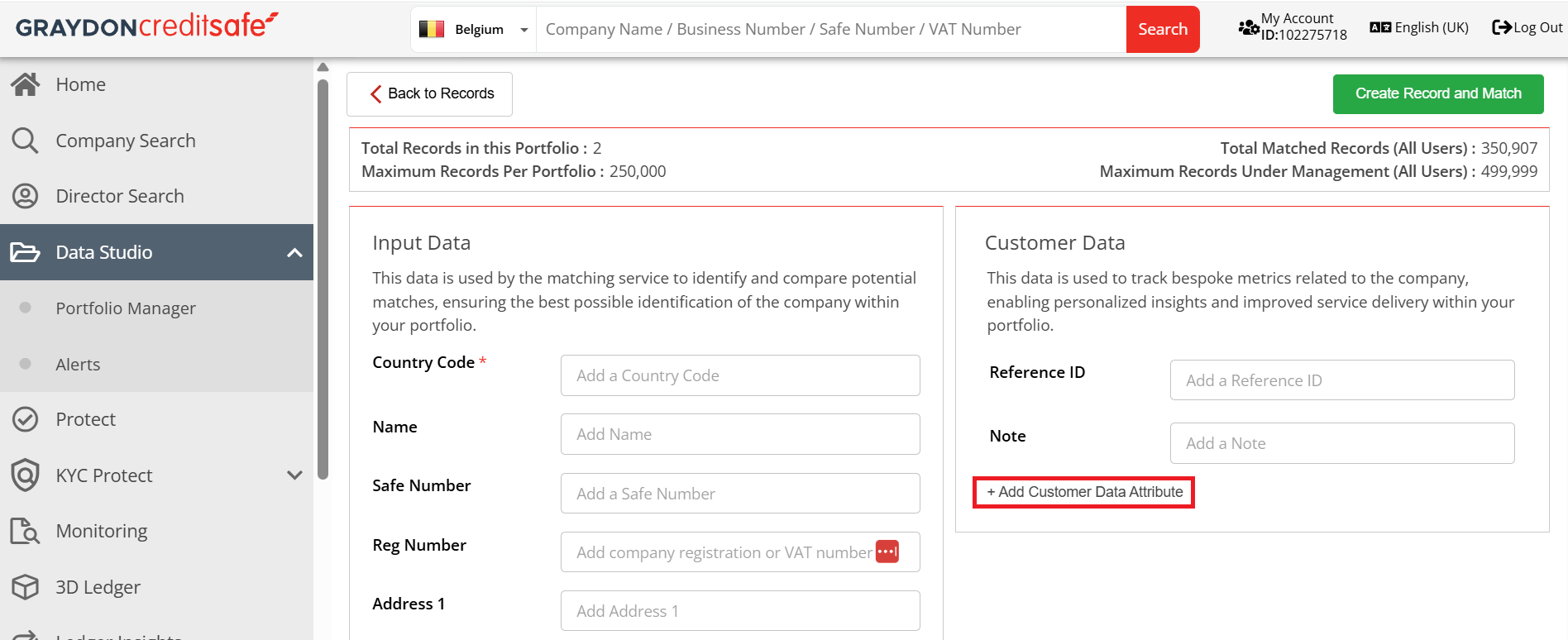
7. Click Create record and match.
8. The record will begin processing, and its matching status will appear in the top-left corner.
9. Click Back to Records to return to your portfolio.
Your new record will now appear in the records list.
For additional guidance, see the interactive demo How to add an individual companies to a portfolio in Data Studio.
Option 3: Add a company from a Company Report
If you are viewing a company in the GraydonCreditsafe platform, you can add it directly to an existing Data Studio portfolio.
1. Use the Company Search bar to find the company.
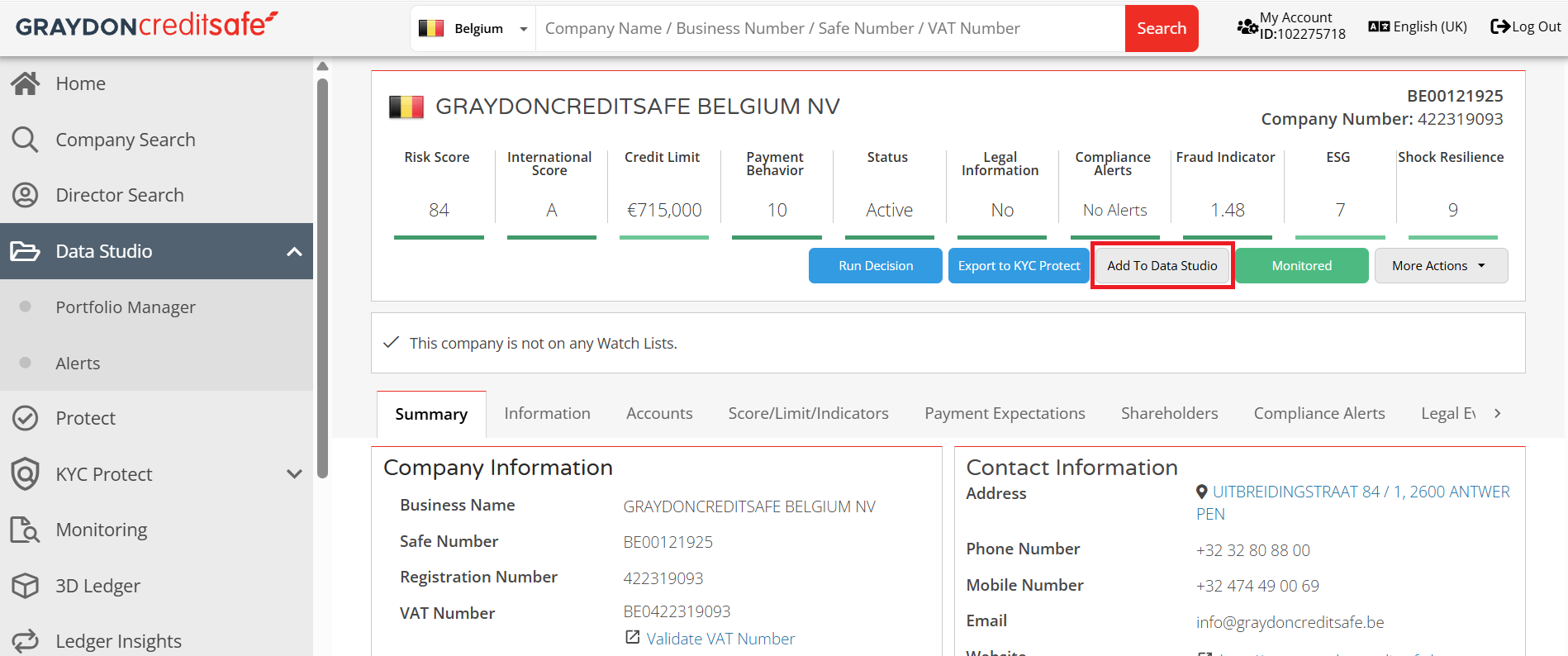
2. Open the company's Company Report.
3. Click Add to Data Studio.
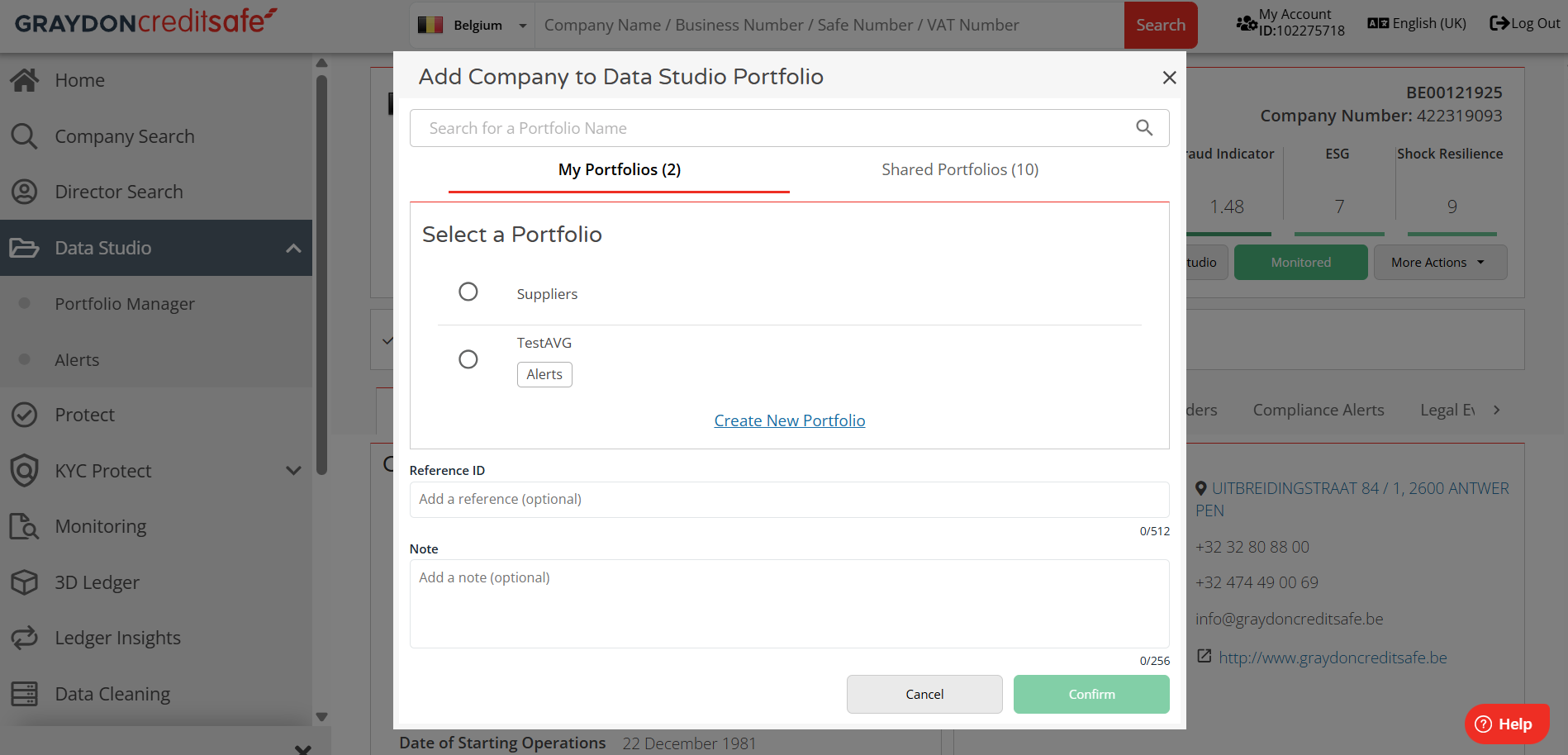
4. In the pop-up window, select the portfolio you want to add the company to.
5. Optionally, enter a Reference ID and a note.
6. Click Confirm.
To view the added company, navigate to Data Studio > Portfolio Manager, open the relevant portfolio and go to the records list. For additional guidance, see the interactive demo How to add a company to a portfolio in Data Studio from a company report.
What happens after adding records?
When adding records, Data Studio can match your company information against the GraydonCreditsafe database. Depending on the matching results, records may appear as Matched or Unmatched. You can review matching results, accept suggested matches and adjust your matching settings within your portfolio.
Learn more: How does record matching work in Data Studio?
If your records are not matching as expected, see How can I troubleshoot and improve record matching in Data Studio?