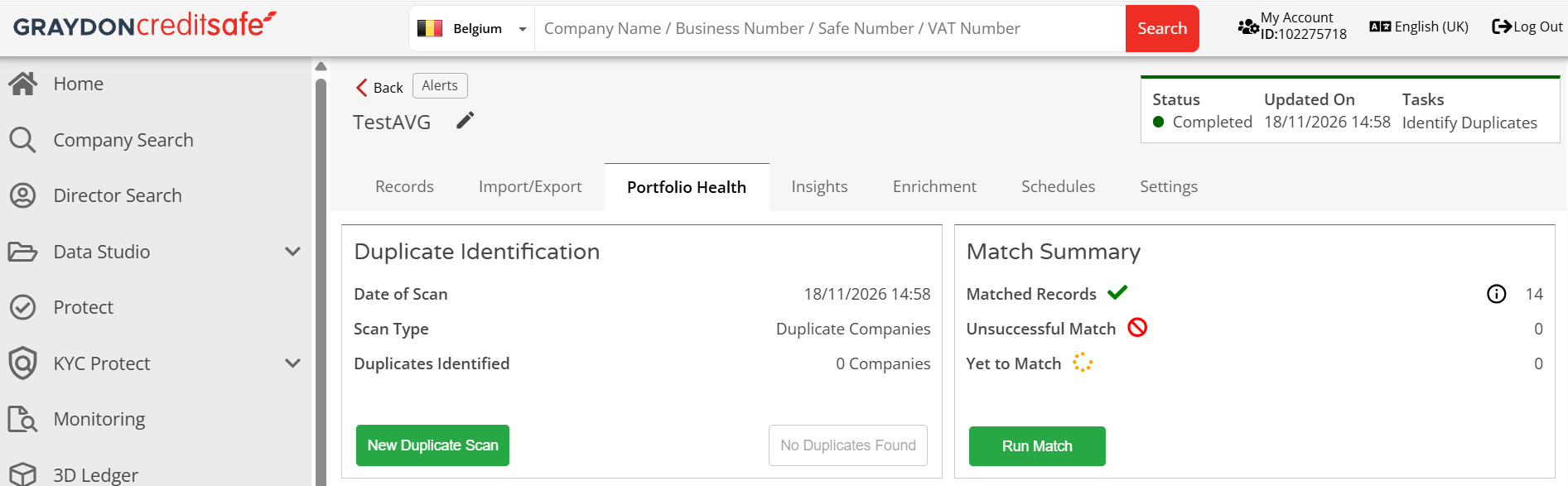
Data Studio allows you to view, update, export and manage the company records within your portfolios.
This guide explains how to manage existing records, including updating company information, exporting data, removing records and identifying duplicates.
1. How do I view and manage my records?
1. Log in to the GraydonCreditsafe platform.
2. In the left-hand navigation menu, click Data Studio > Portfolio Manager.
3. Select the portfolio you want to manage.
4. You will be taken to the Records tab, where you can view the company records within your portfolio.
From here, you can:
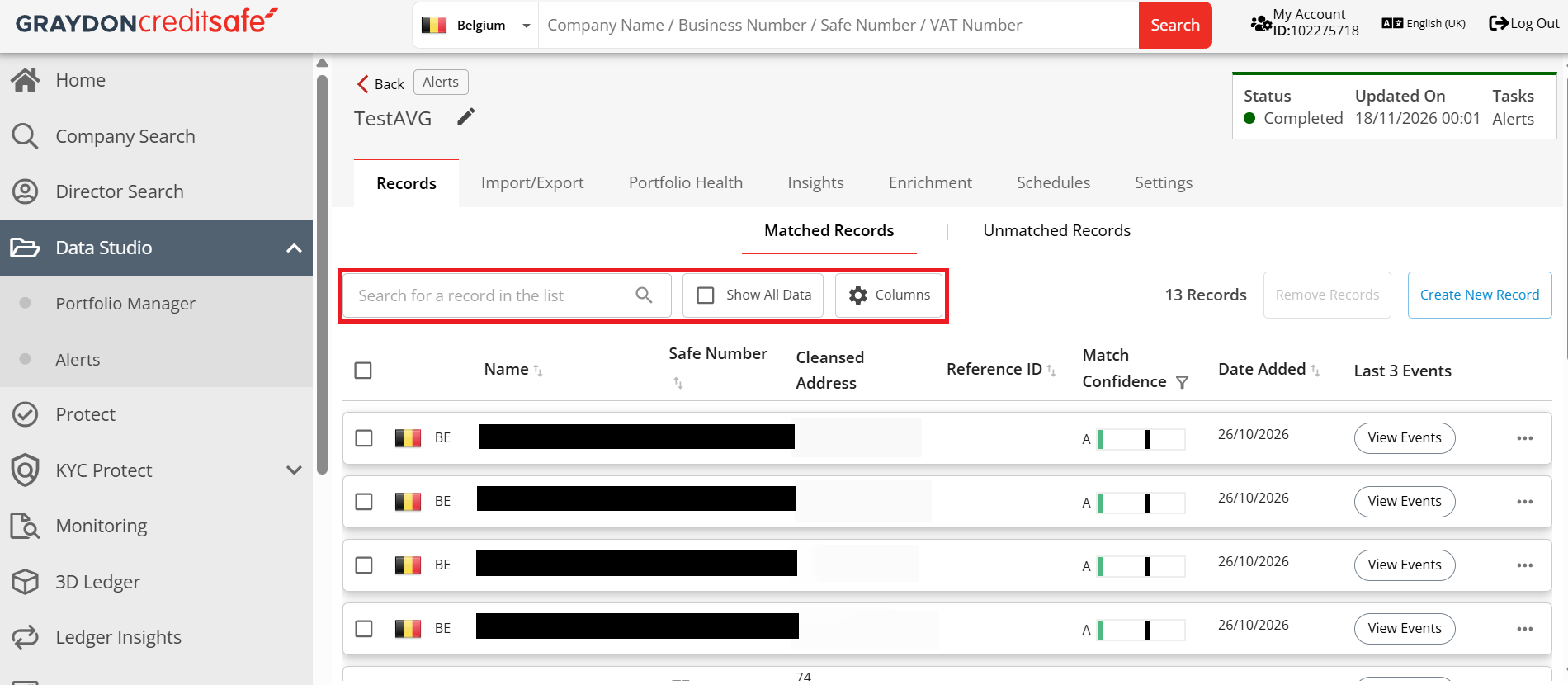
Search for records: Use the search bar to find a specific company within your portfolio.
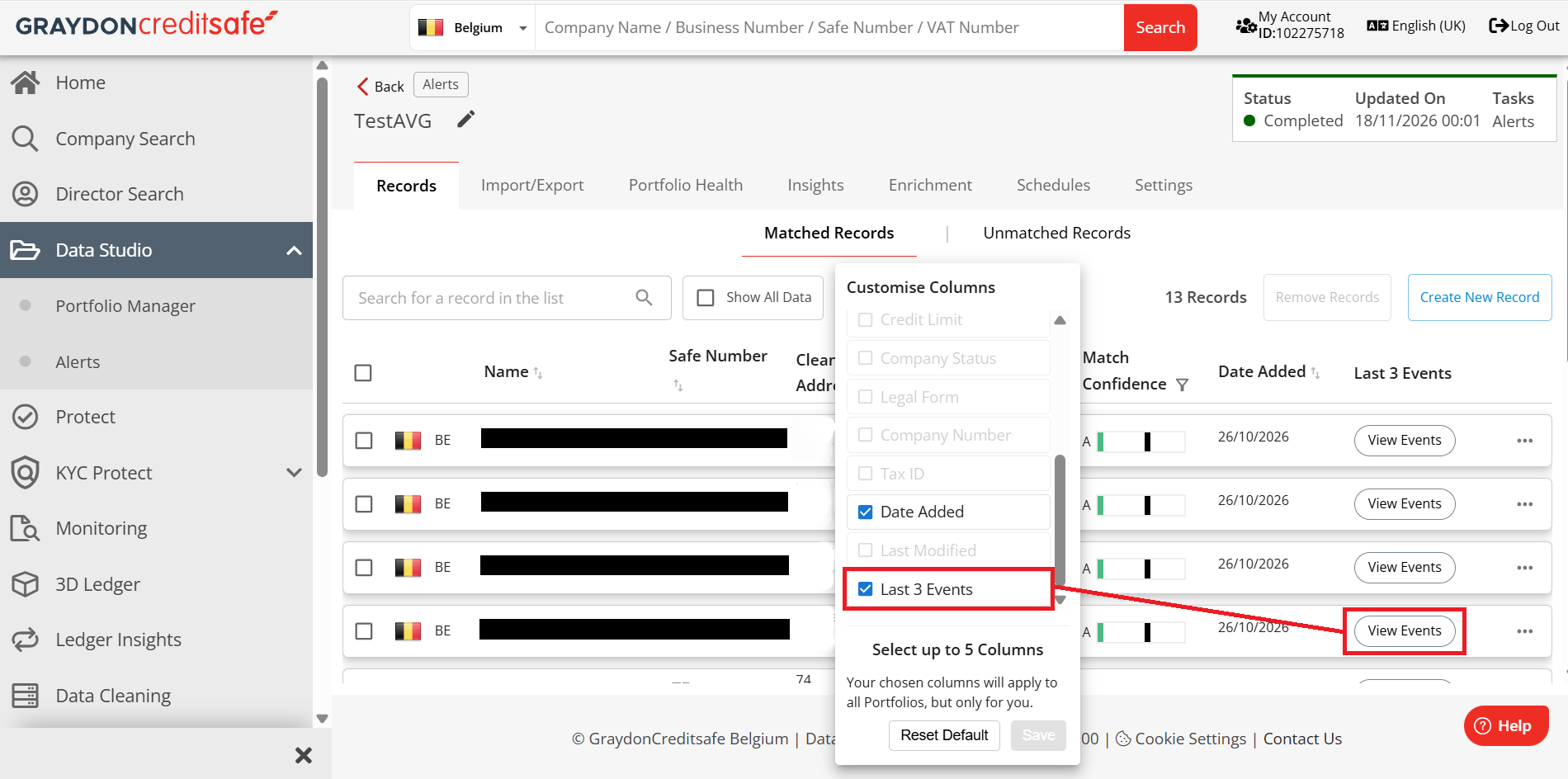
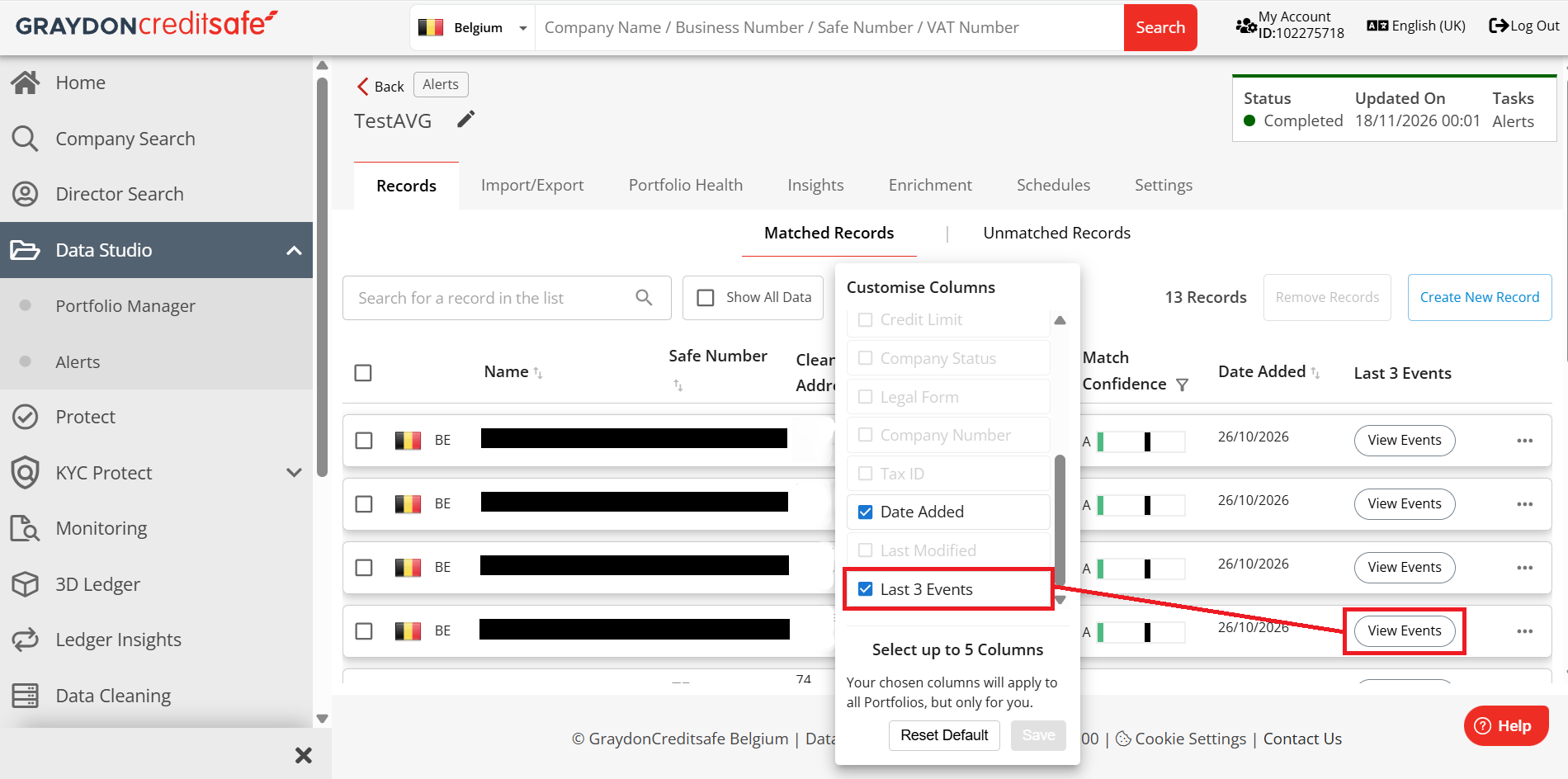
Customise your view: Click Columns to select which information is displayed in your records list.
Compare company data: Tick Show All Data to display your original input data alongside the corresponding GraydonCreditsafe data.
View recent events: If you have enabled the Last 3 Events column, click it to view the company's three most recent events.
View record details: Click on a record to open its detailed information.
Within an individual record, you can view:
Input Data: The original information provided when the record was created or imported.
Customer Data: Any additional information you have added to the record, such as Annual Contract Value.
Matching Information: Details about the record's matching status.
To return to your portfolio records list, click Back to Records.
You can also switch between Matched Records and Unmatched Records to review which companies have been or haven't been successfully matched to the GraydonCreditsafe database.
Learn more: How does record matching work in Data Studio?
2. How do I update existing records?
You can update existing records in your Data Studio portfolio by uploading a file containing the information you want to change.
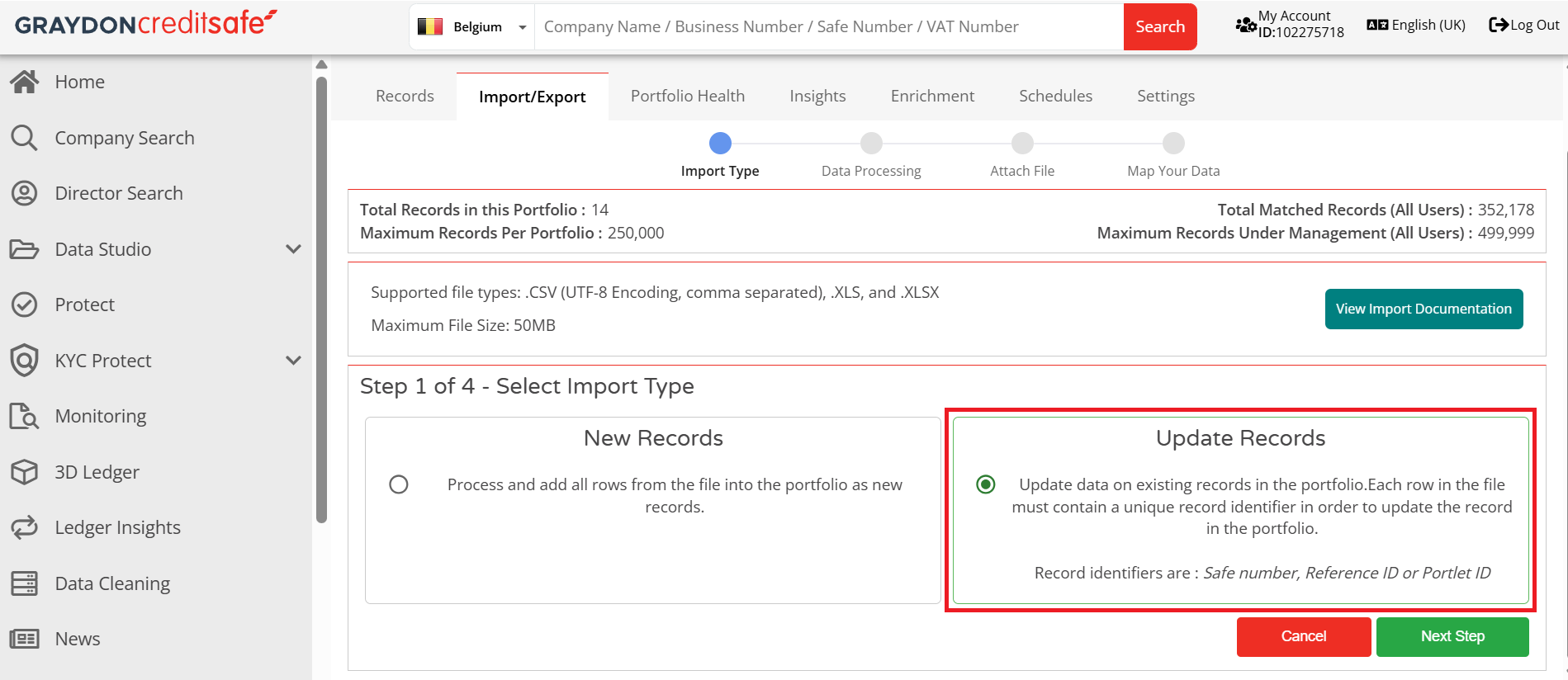
1. In the Import/Export tab, click Import Records (default)
2. Choose Update records instead of new records. (The Update Records option is only available if your portfolio already contains records.)
3. To update existing records, each row in your upload file must contain a unique record identifier that Data Studio can use to identify the corresponding record in your portfolio. You can choose one of the following identifiers:
Safe Number
Reference ID
Unique Record ID (Portlet ID)
Tip: You can also use the Export Portfolio functionality to download your existing portfolio records, including their pre-generated unique record identifiers (Portlet IDs).
4. Upload the file containing your updated records. If your file contains column headers, tick File contains header row.
5. Map the columns in your uploaded file to the corresponding GraydonCreditsafe data fields.
6. Once submitted, your file will begin processing. You can navigate to the Records tab to monitor the upload progress. Once processing is complete, the updated information will be available in your portfolio.
3. How do I export portfolio records?
You can export records from your Data Studio portfolio and choose which information you want to include in the export.
To export your records:
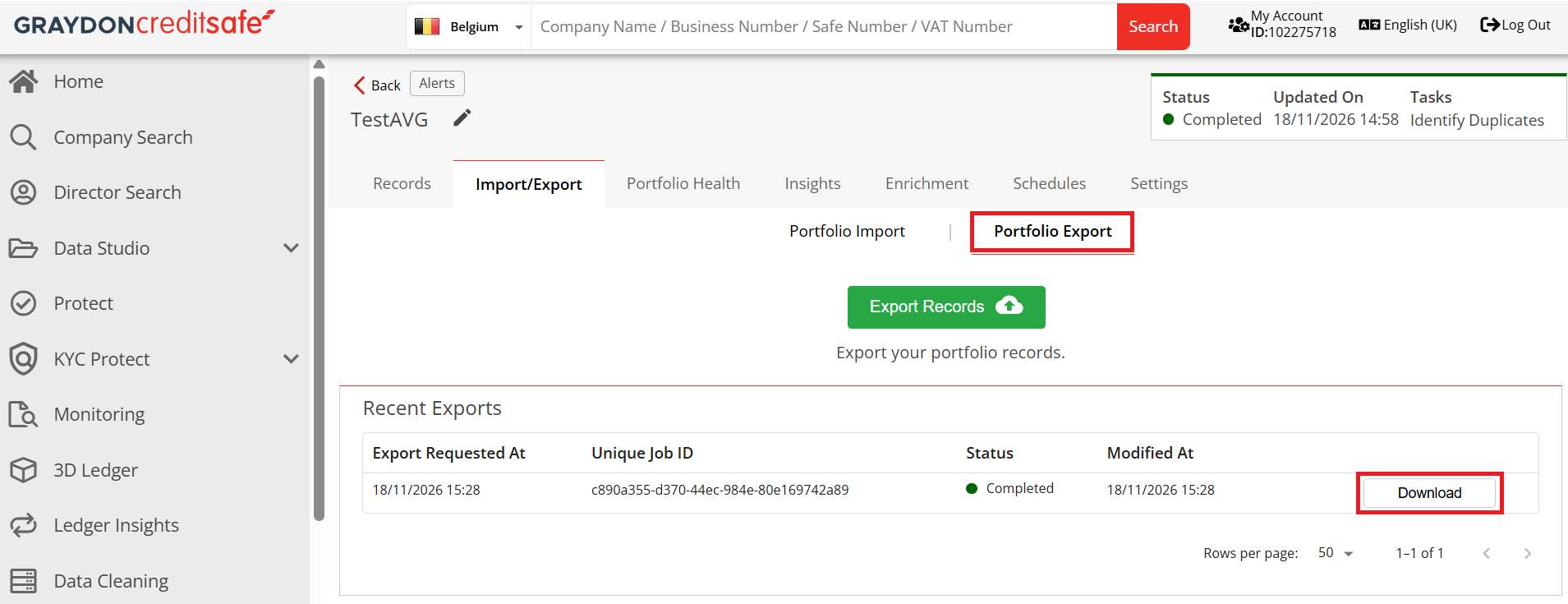
1. Navigate to the Import/Export tab.
2. Click Export records.
3. A pop-up window will appear, allowing you to select the data you want to export.
4. Click Confirm to create the export job.
5. Once the export job has been created and the file is ready, click Download to download your exported records.
4. How do I remove a single record?
If you no longer need a company record in your portfolio, you can remove it individually.
1. Open your portfolio in Data Studio.
2. Navigate to the Records tab.
3. Find the record you want to remove.
4. Click the three-dot menu (⋮) next to the record.
5. Select Remove record.
5. How do I remove multiple records?
You can also remove several records at once.
1. Use the checkboxes on the left-hand side of the records table to select the records you want to remove.
2. The number of selected records will appear above the table, and the Remove records button will become active.
3. Click Remove records.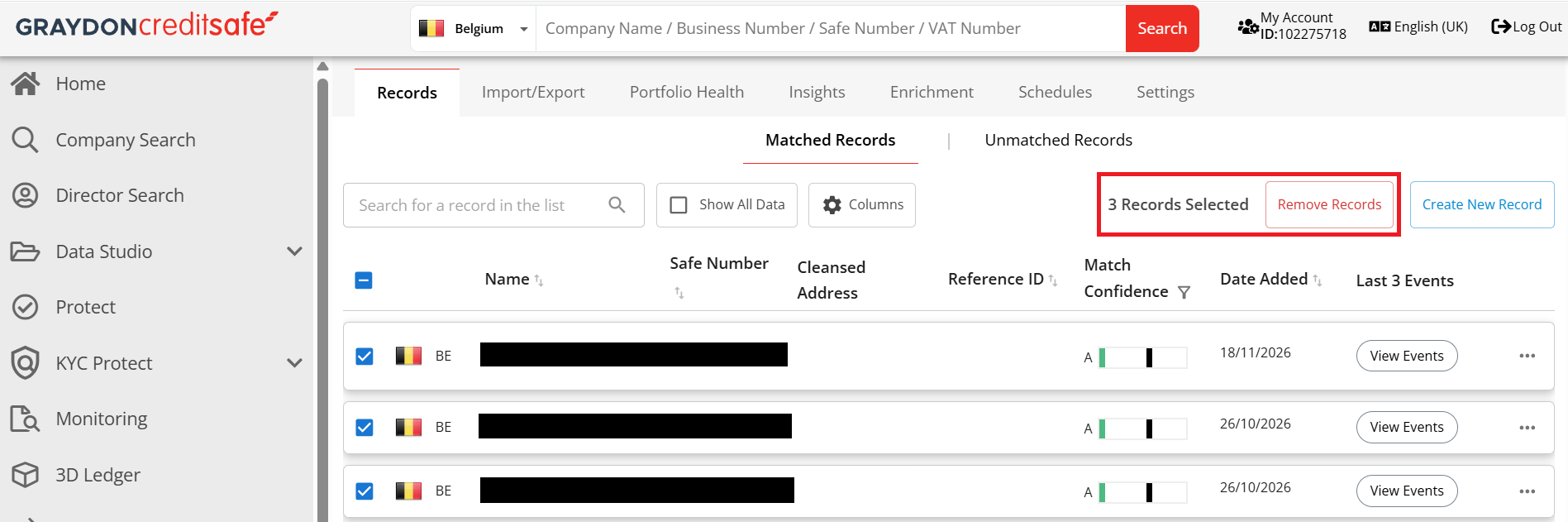
6. How do I manage duplicate records?
Data Studio allows you to identify and manage duplicate records within your portfolio.
1. Open your portfolio in Data Studio.
2. Click the Portfolio Health tab.
- If there are duplicate records, you can click View duplicate records. You will see a list of duplicate records identified within your portfolio. Review the list and tick the checkboxes next to the records you want to remove.
- If there aren't duplicate records or you imported many new records and want to do a scan, you can click New duplicate scan. A scan will run and check on duplicate records.