
Data Studio Alerts allows you to monitor important changes affecting companies within your portfolios, such as changes in credit scores, legal filings and risk categories. You can create Alert profiles for your portfolios, customise which changes trigger notifications and choose who should receive Alert emails. This guide explains how to create, view and manage your Alert profiles.
1. How do I set up an Alert profile?
1. In the left-hand navigation menu, expand Data Studio and select Alerts.
2. Select New Alert Profile
3. Select Portfolio and add the alert profile details like a name, start date and email language
4. Add an email subject line and add additional users who should receive alert notifications
5. Select the Alert Rules you want to apply to your portfolio. These are divided into Global Rules and Local Rules.
- Global Rules allow you to monitor company changes using advanced filtering options, helping you tailor Alerts to your specific monitoring requirements.
- Local Rules allow you to monitor additional country-specific company changes.
6. Complete the Alert profile creation process.
Please note: Local Rules are currently available for a limited number of countries. Data Studio Alerts does not yet offer the same country coverage as Global Monitoring.
2. How do I view my Alert profiles?
You can view your existing Alert profiles in the Alerts section of Data Studio.
At the top of the page, you can switch between:
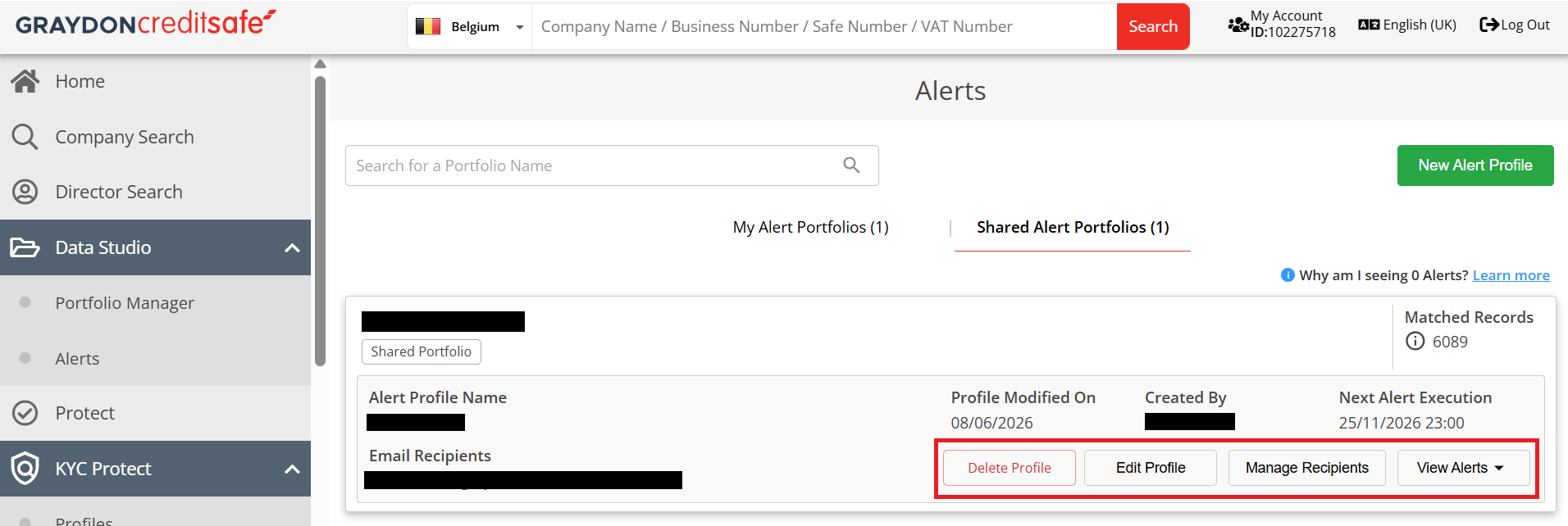
My Alert portfolios: Displays portfolios with Alert profiles you have created.
Shared Alert portfolios: Displays Alert portfolios shared with you by other users on your account.
3. How do I edit or delete an Alert profile?
You can manage your existing Alert profiles directly from the Alerts page.
- Click Edit profile to return to the Alert configuration screen, where you can adjust the profile details and Alert Rules.
- Click Manage recipients to update the email recipients associated with the Alert profile.
- Click View alerts to access the Alerts associated with the profile.
- Click Delete profile to remove the Alert profile.
4. Who can receive Alerts?
When creating or editing an Alert profile, you can add multiple email recipients.
If a portfolio is shared with other users on your account, those users can view the Alerts within the platform.
However, they will only receive email notifications if they have been added as recipients to the Alert profile.