
Would you like to grant a colleague access to GraydonCreditsafe? With User Management, you can add a new user yourself and determine which products and features that person has access to.
Good to know

Only the Account Owner and Account Admins can manage users.

Do you have access to User Management? If so, follow the steps below to add a new user yourself.

Don’t have access to User Management yet? Please contact your customer support team at support@graydoncreditsafe.be, providing the name and email address of the person you wish to add to your account. Would you like to be able to add, edit and deactivate users yourself in future? Your account manager can help you enable User Management for your organisation.
Adding a new user
Please note: If you wish to add users to a selection of products, it is important to create product groups first. To do this, go to How do I grant users access to specific products?.
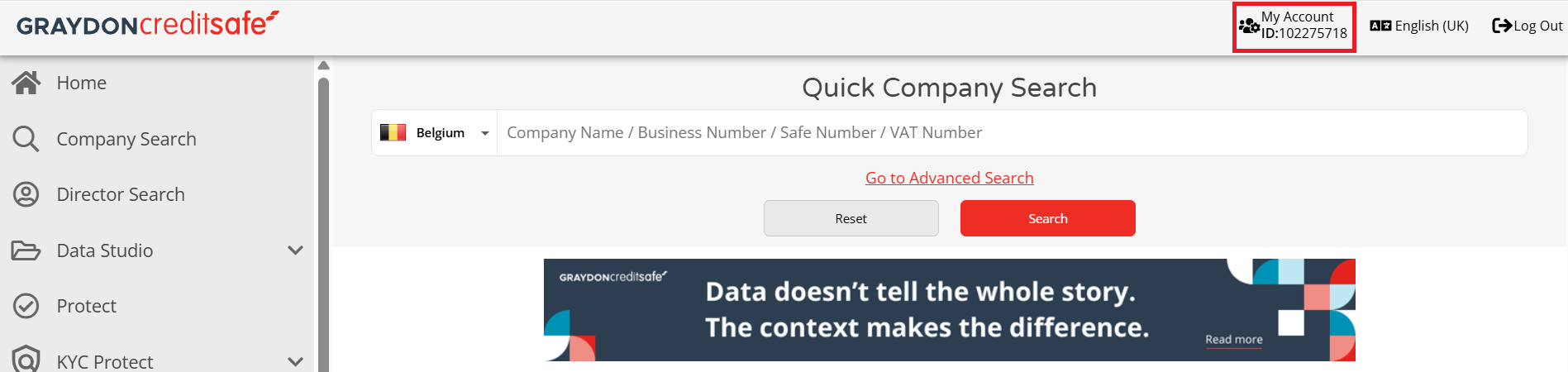
1. Click on the My Account button in the top right-hand corner
2. Go to the User Management tab
3. Click on the Create new user button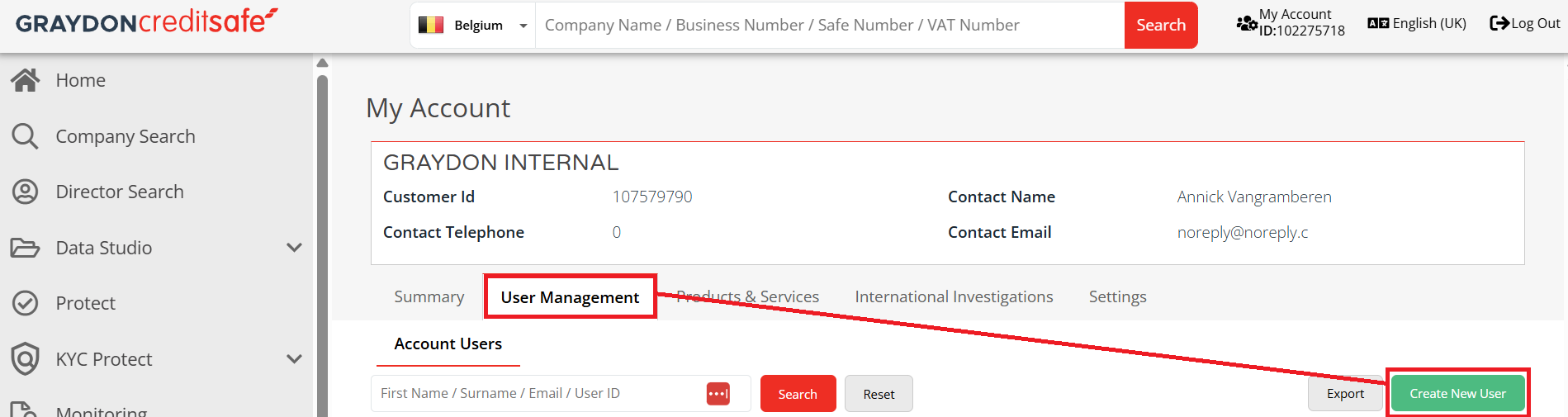
4. Enter the required details:
- Username: this is the user’s email address and must be unique
- First name and surname
- Mobile number: this must be in the following format: country code followed by the number without spaces (e.g. 32 23456789)
- User rights: this grants the user access to user management to view or edit other users’ rights. Leave this blank if the user is not to have access to managing other users.
- Please note: Only one user can hold the Account Owner role.
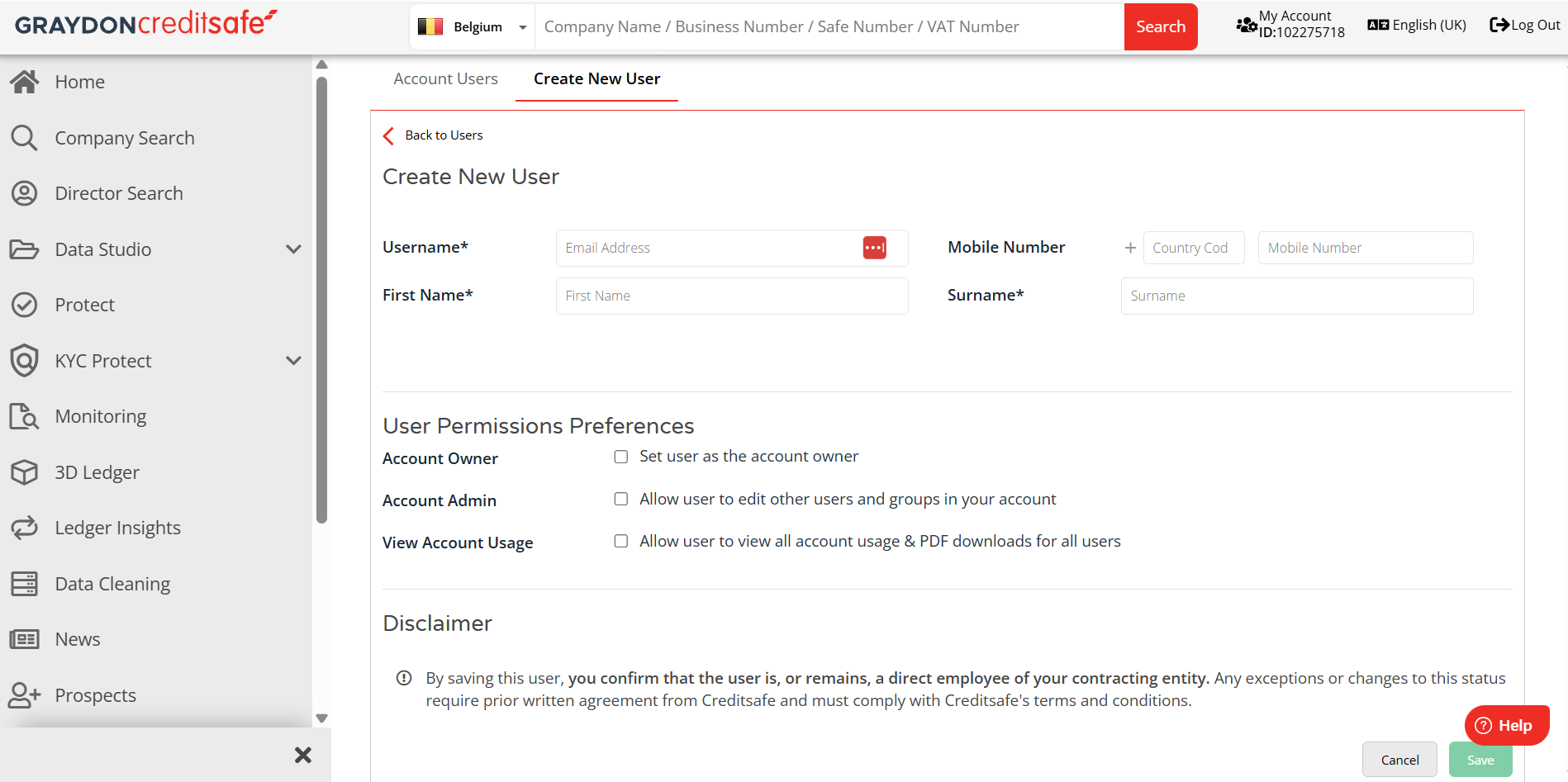
5. Click Save once all the details have been entered correctly. If there are any errors in the input fields, the system will not allow you to proceed.
6. You will now be redirected to the page where you can manage the product groups assigned to the user. Select or deselect the groups you wish to assign.
7. Click Save.
8. The user has now been created and assigned to the relevant product groups. Go to the User Management tab to view the user in the list.
9. The new user will receive an email inviting them to log in to GraydonCreditsafe.
Has the user not received an invitation?
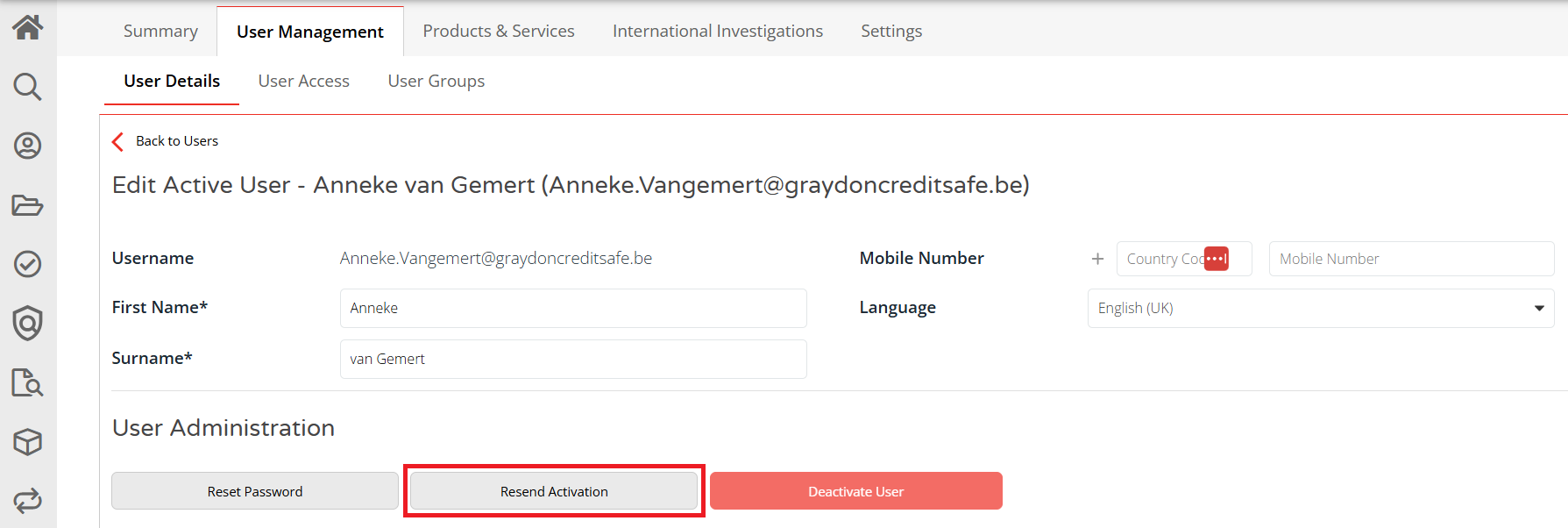
First, check that the email address has been entered correctly and ask the user to check their junk or spam folder. Is the email address correct, but has the user still not received the invitation? You can resend the invitation from User Management.
1. To do this, click on the user to whom you wish to send a new invitation
2. Click on Resend activation email.
Does your organisation use Single Sign-On (SSO)?
For organisations that use Single Sign-On (Federated Login), the process of adding and activating users may work differently.
See Does SSO (Federated Login) have an impact on User Management? for more information.