
User Management allows you to manage the details, permissions and access rights of existing users within your organisation. View the interactive video here: How to update a user.
Good to know

Only the Account owner and Account admins can manage users.

Do you have access to User Management? If so, follow the steps below to manage a user yourself.

Don’t have access to User Management yet? Please contact your customer support team at support@graydoncreditsafe.be, providing the name and email address of the person whose account you wish to edit. Would you like to be able to add, edit and deactivate users yourself in future? Your account manager can help you enable User Management for your organisation.
Changing user details
1. Click on My Account in the top right-hand corner of the home page.
2. Go to the User Management tab.
3. Select the user you wish to edit from the list of users.
4. Under User details, you can edit the following information:
- First name
- Surname
- Mobile number: you can update the mobile number, but not delete it.
- Language: this changes the language in the platform’s user interface and in emails sent by the system.
- User rights: this grants the user access to user management to view or edit other users’ rights. Leave this blank if the user is not permitted to manage other users.
- Please note: Within user rights, only one user can hold the role of Account Owner.
5. You can also:
- Reset the password
- Resend the activation email
- Deactivate the user: deactivated users are displayed in the Inactive users section
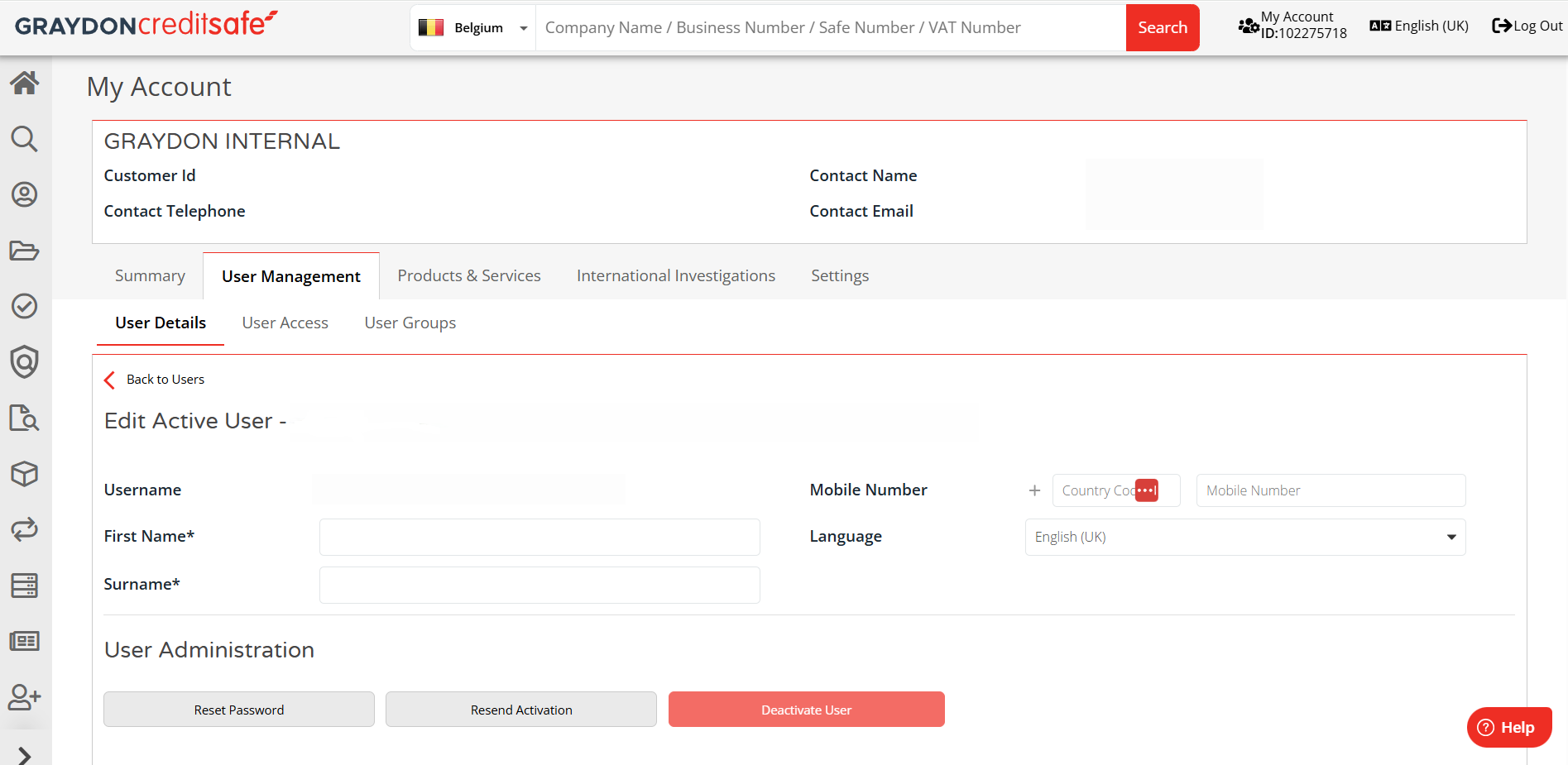
6. You cannot change the username or email address. Would you like to change this? If so, please contact your Account Manager.
7. Once you have made the desired changes, click Save.
How do I set a usage limit for a user?
You can specify, per user and per product, how many requests that user is allowed to make. By default, the usage limit is set to the maximum available number.
1. Click on the user for whom you wish to set a usage limit.
2. Go to the User Access tab.
3. Find the product for which you wish to set a limit.
4. Untick ‘Maximum quantity’ to adjust the usage limit.
5. Enter the desired number of requests.
6. Click Save.
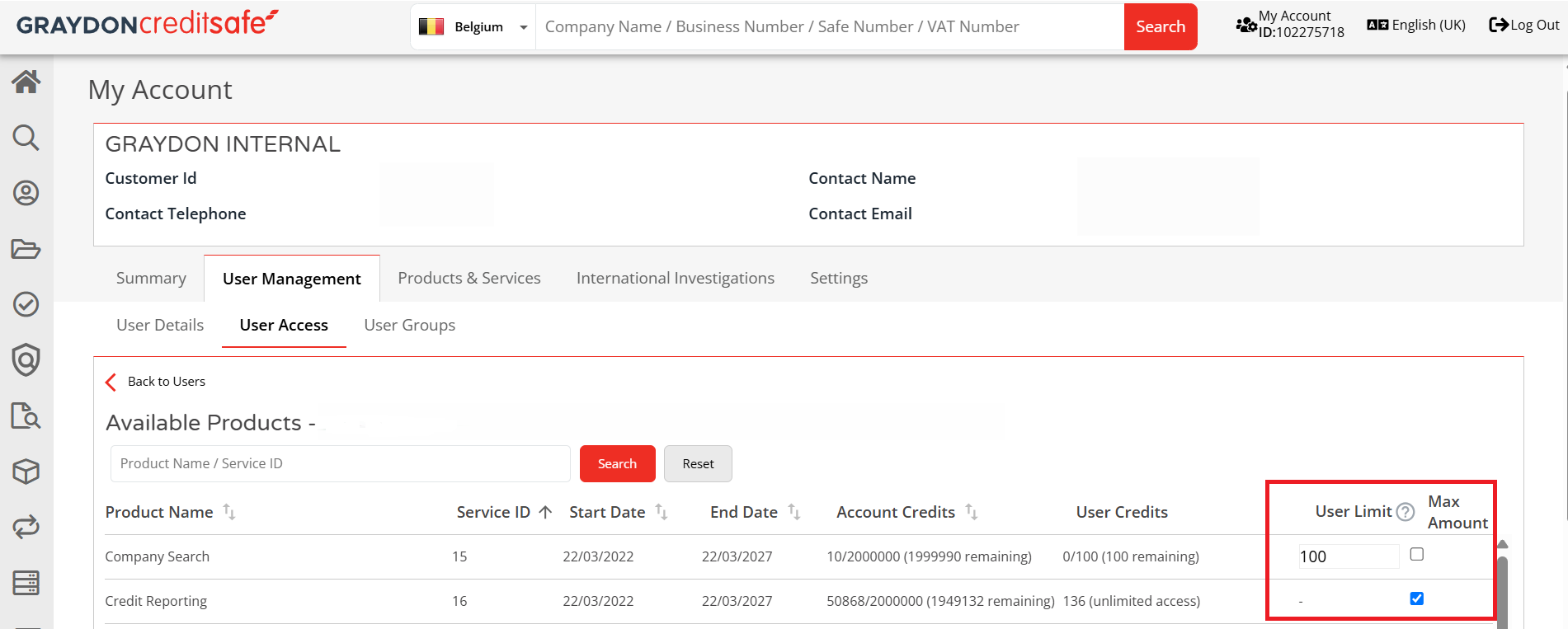
Please note: A usage limit determines how many requests a user is permitted to make for a product. Would you like to specify which products a user has access to? You can manage this via Product Groups. You can view the groups to which they have access under User Groups. Would you like to change which products a user has access to? You’ll find all the information you need in How do I manage a product group?
Can’t find a user?
Check whether the user has access to the GraydonCreditsafe web application. Users who access our services exclusively via the Connect API are not displayed in User Management.
For more information on which users you can manage via User Management, see Who can manage users in GraydonCreditsafe?