
Data Studio allows you to manage your company portfolios, view company records and access tools for matching, data enrichment and portfolio analysis.
This guide explains how to access Data Studio, navigate your portfolios and find the different features available within the workspace.
1. How do I access Data Studio?
To access your portfolios:
Log in to the GraydonCreditsafe platform.
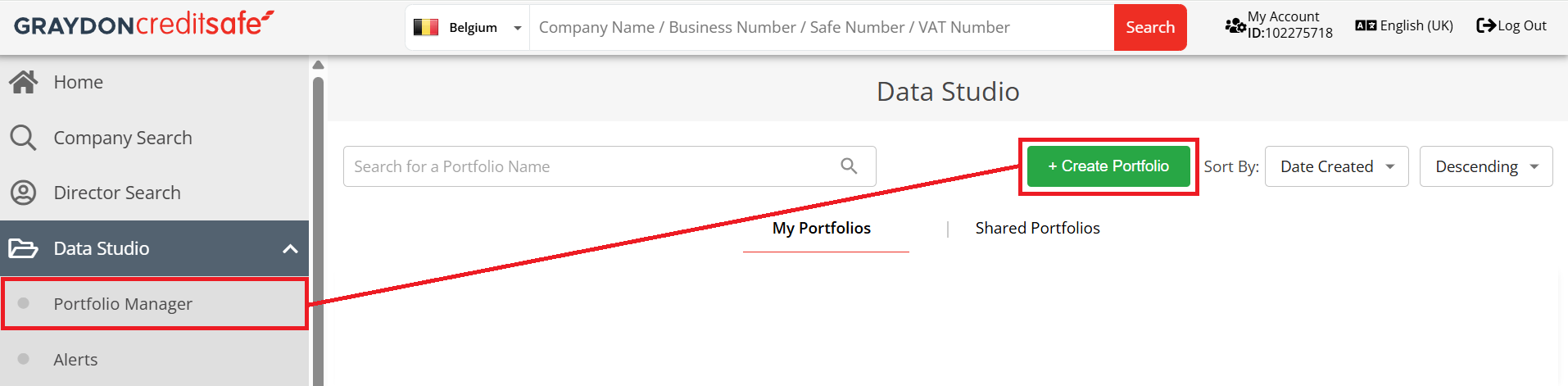
In the left-hand navigation menu, click Data Studio.
Select Portfolio Manager.
You will be taken to the Portfolio Manager page, where you can create a new portfolio or access your existing portfolios.
2. How do I create my first portfolio?
To create a portfolio:
On the Portfolio Manager page, click Create Portfolio in the top-right corner.
Enter a unique name for your portfolio.
Optionally, choose whether you want to share the portfolio with other users on your account.
If you have Data Studio Alerts enabled for your account, you can automatically create an Alert profile with all default rules enables and your account email address as recipient. If not, and you would like to, you can contact your Account Manager.
Once your portfolio has been created, you can open it to start adding and managing company records.
For more information about editing, sharing, cloning or deleting portfolios, see
3. How do I navigate a portfolio?
Once you have selected a portfolio, you will be taken to the Records tab, where you can view and manage the company records within your portfolio.
If your portfolio is new, it will not contain any records yet. You can add records individually, upload multiple records or add companies directly from a GraydonCreditsafe Company Report.
For detailed instructions, see How do I manage records in a Data Studio portfolio?
Once records have been added, you can:
View company records: Browse the companies within your portfolio and access their details
Search for records: Use the search bar to find a specific company
Customise your view: Click Columns to choose which information is displayed in your records list
Compare company data: Select Show All Data to view your original input data alongside the corresponding Creditsafe data
View record details: Click on a record to see additional information, including its input data, customer data and matching information
View recent events: If the Last 3 Events column is enabled, click it to view the company's three most recent events.
To return to your records list, click Back to Records.
4. Understanding the different portfolio tabs
Within a portfolio, you will find several tabs that allow you to access different features. Here's a quick overview of all the tabs.
Records
View and manage your portfolio records. You can switch between Matched records and Unmatched records to see which companies have been successfully matched to the GraydonCreditsafe database.
Import/Export
Import multiple company records into your portfolio or export existing portfolio data.
Portfolio Health
Review the overall quality of your portfolio data. This section allows you to identify duplicate records, review matching results, accept suggested matches and rerun matching or duplicate checks.
Insights
Create and view portfolio analysis reports to gain a better understanding of the companies within your portfolio.
Learn more: What Insights are available in Data Studio? and How do I create and run Insights in Data Studio?
Enrichments
Enhance your portfolio records with additional Creditsafe data and generate enrichment extracts.
Learn more: How do I create an Enrichment in Data Studio?
Settings
Configure your portfolio settings, including the Match Accuracy level used when matching your records against the GraydonCreditsafe database. You can also configure Watch Lists within your portfolio settings.